
Spotlight can help you quickly find apps, documents, emails, and other items on your Mac. With Siri Suggestions, you can also get news, sports scores, weather conditions, stock prices, and more. Spotlight can even perform calculations and conversions for you.
Siri: Say something like: “How many centimeters in an inch?” or “What does parboil mean?”
Search for something
- On your Mac, do one of the following:
- Click the Spotlight icon
 (if shown) in the menu bar.
- Press Command+Space bar.
- Press (if available) in the row of function keys on the keyboard.
You can drag the Spotlight window anywhere on the desktop.
Tip: If the Spotlight icon isn’t in the menu bar, add it using Control Center settings. - Click the Spotlight icon
- In the search field, type what you’re looking for—results appear as you type.
Spotlight lists top matches first; click a top match to preview or open it. Spotlight also suggests variations of your search; those results appear in Spotlight or on the web.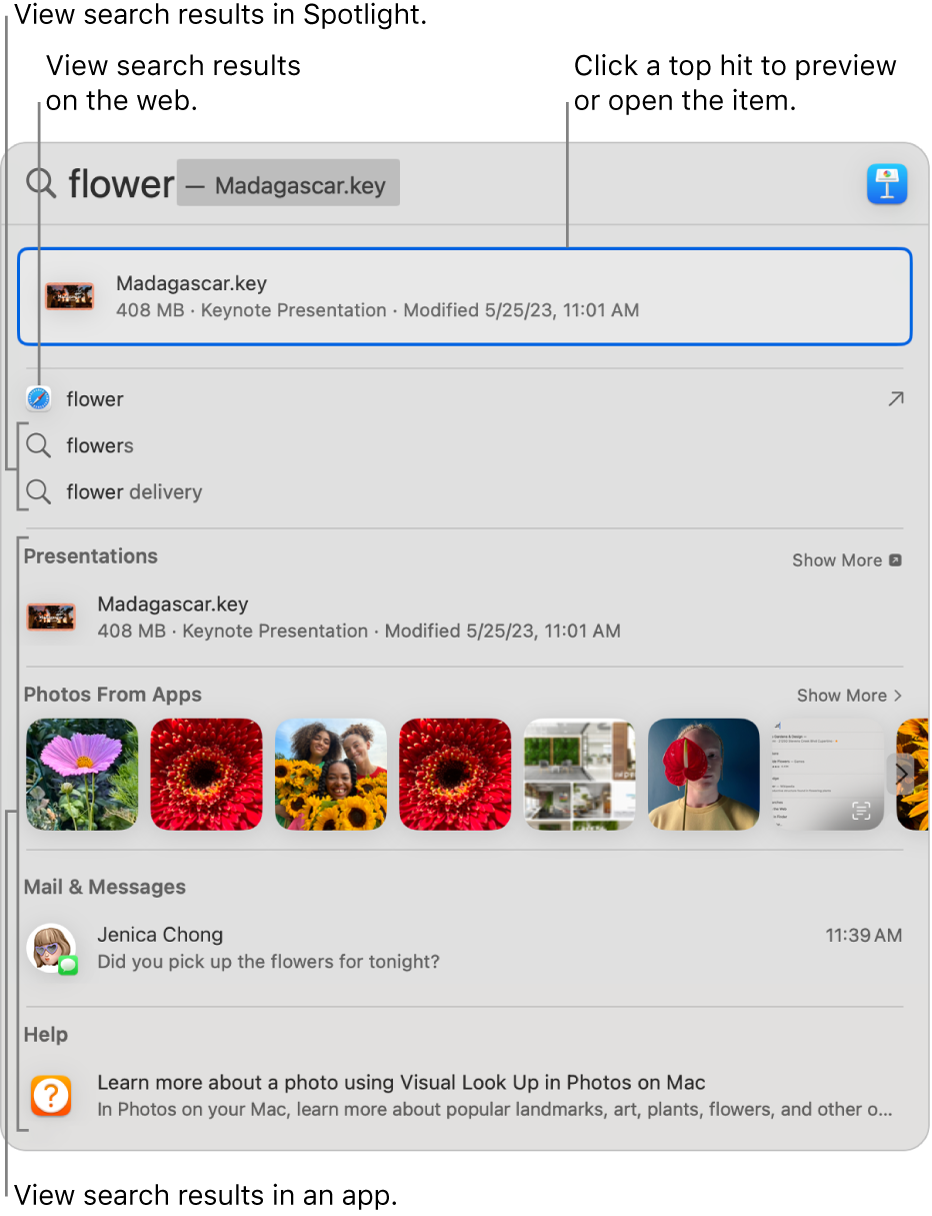
- In the results, do any of the following:
- See results of a suggested search in Spotlight: Click an item preceded by the Spotlight icon .
- See results of a suggested search on the web: Click an item followed by an arrow icon
 .
. - Open an item: Double-click it. Or select the item, then press the Return key.
This action may open an app, such as Messages , Help Viewer
  , and more.
 - Turn a setting on or off: Click to turn a setting (such as VoiceOver) on or off when you search for it in Spotlight.
- Take a quick action: When you type a phone number, email, date, or time, you may be able to take a quick action—such as making a FaceTime call or sending an email.
- Show the location of a file on your Mac: Select the file, then press and hold the Command key. The file’s location appears at the bottom of the preview.
- Copy an item: Drag a file to the desktop or a Finder window.
- See all results from your Mac in the Finder: Scroll to the bottom of the results, then click Search in Finder.
- See results of a suggested search in Spotlight: Click an item preceded by the Spotlight icon
- Tip: If the Spotlight icon isn’t in the menu bar, add it using Control Center settings.
During downtime, or if you reach the time limit set for apps in Screen Time settings, app icons in results are dimmed and an hourglass icon  is shown.
Get calculations and conversions in Spotlight
You can enter a mathematical expression, currency amount, temperature, and more in the Spotlight search field, and get a conversion or calculation right in the same place.
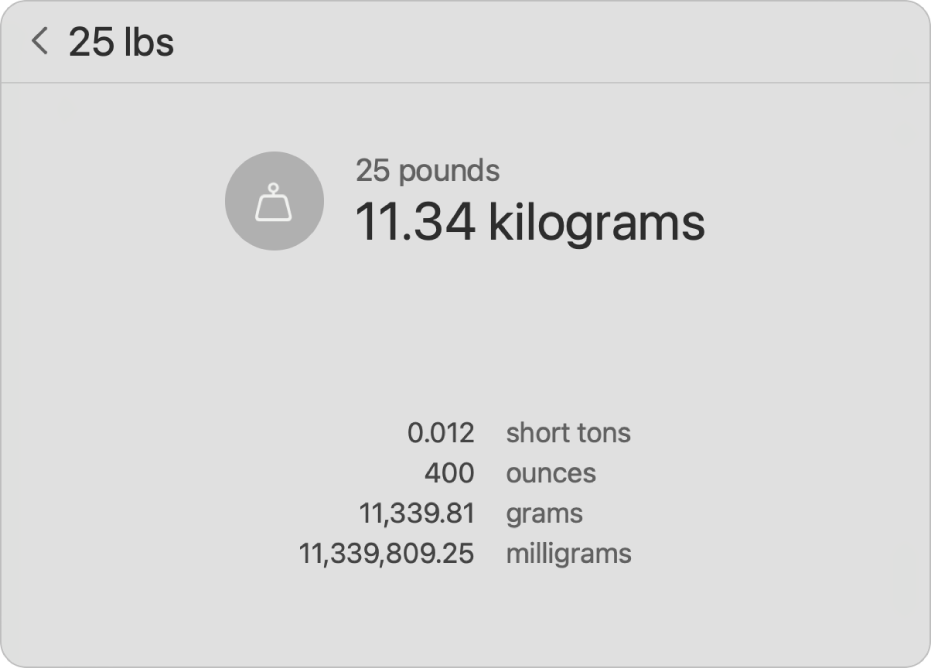
- Calculations: Enter a mathematical expression, such as 956*23.94 or 2020/15.
- Currency conversions: Enter a currency amount, such as $100, 100 yen, or “300 krone in euros.”
- Temperature conversions: Enter a temperature, such as 98.8F, 32C, or “340K in F.”
- Measurement conversions: Enter a measurement, such as 25 lbs, 54 yards, 23 stone, or “32 ft to meters.”
- World clock conversions: Enter a phrase about a time in a location, such as “time in Paris” or “Japan local time.”
You can include or exclude specific folders, disks, or types of information (such as email or messages) from Spotlight searches.
If you want Spotlight to search content only on your Mac and not include results from the web, you can turn off Siri Suggestions for Spotlight.
Spotlight keyboard shortcuts on MacOS
On your Mac, you can quickly search with Spotlight using the keyboard shortcuts below.
| Action | Shortcut |
|---|---|
| Open or close the Spotlight window | Command+Space bar |
| Open a search result in Quick Look | Space bar |
| Switch between the search field and the search results | Tab key |
| Move to the next result | Down Arrow |
| Move to the previous result | Up Arrow |
| Move to the first result in the next category | Command+Down Arrow |
| Move to the first result in the previous category | Command+Up Arrow |
| Show the path of a result (such as a file) | Command |
| Open a result | Return key |
| See a file in an app or the Finder | Command+R or Command+Double-click |
| Open a Finder window with the search field selected | Option+Command+Space bar |