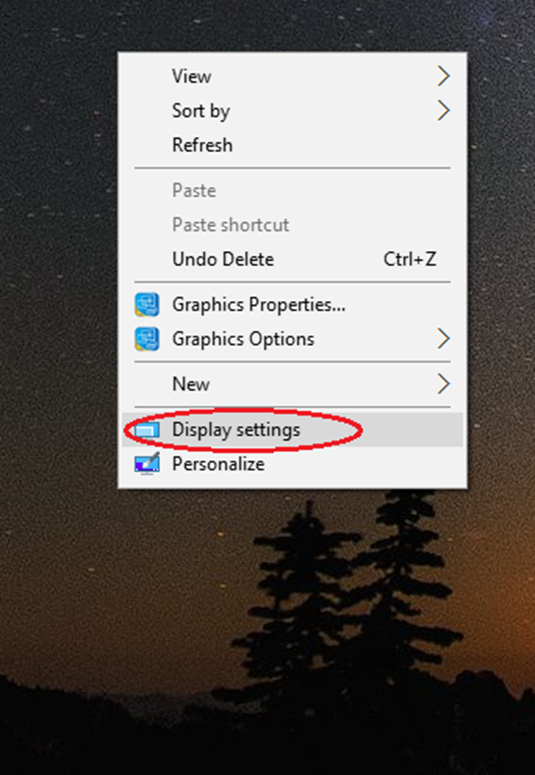
Access Display Settings:
Right-click on empty space on your desktop/wallpaper.
Select Display Settings.
Change Display Modes:
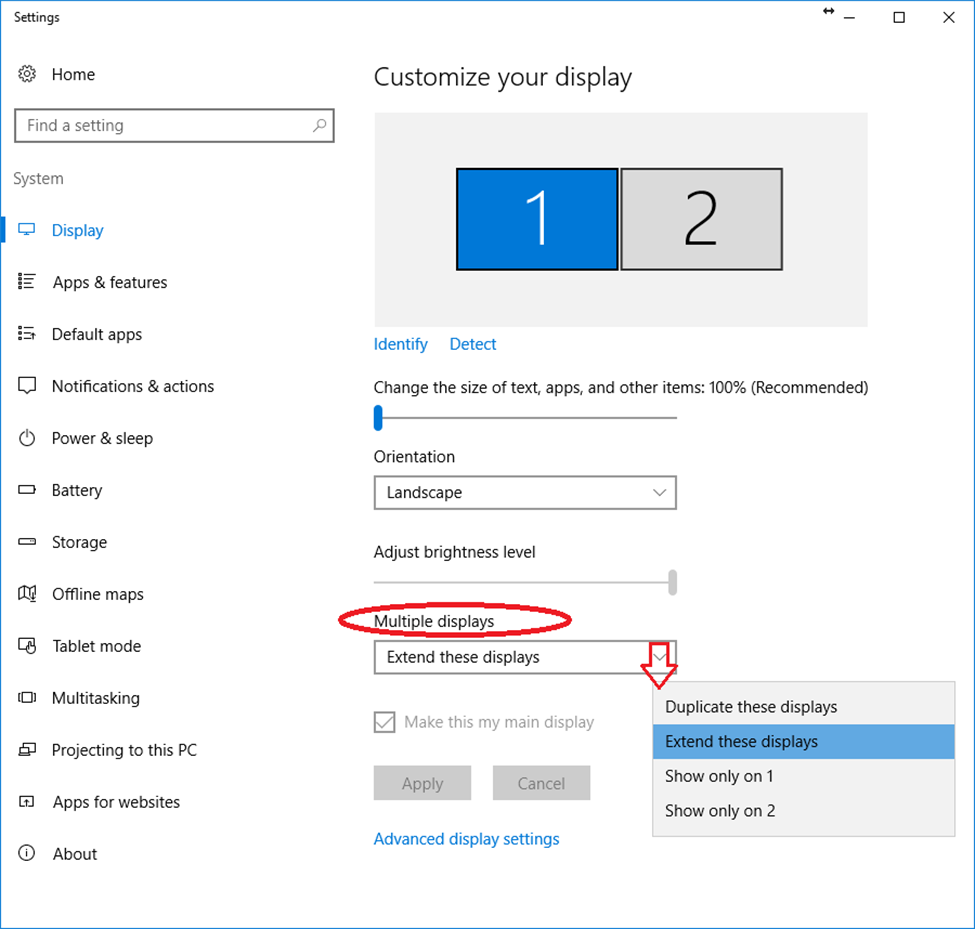
Use the drop-down arrow to change between displaying modes.
Duplicate will clone what is being displayed on your computer to the attached screen.
Extend will allow you to move windows across both screens.
Show only on 1 will show only the frame of screen 1.
Show only on 2 will show only the frame of screen 2.
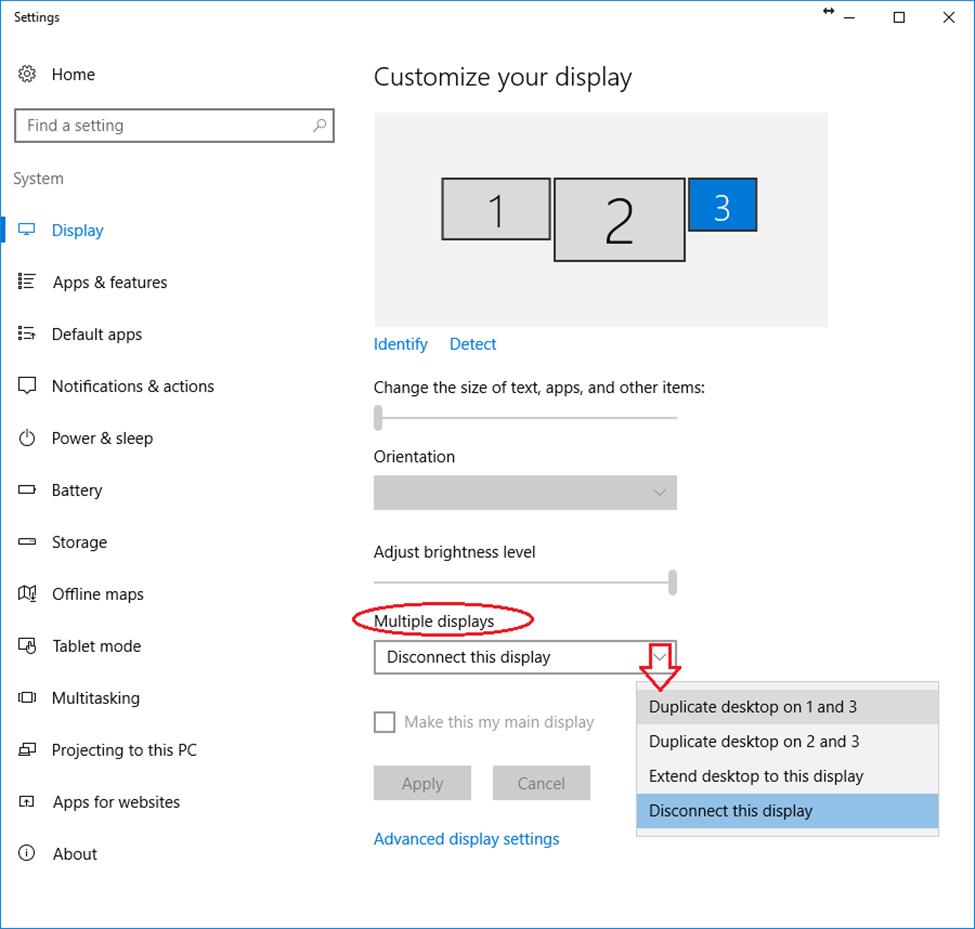
*Disconnect this display: This option is only presented when you have three or more screens (including the laptop LCD screen).
Note: You do need to click on the screen number that you wish to change. Sometimes it will say 1|2 in a single frame, which means you are duplicating. You would have to click on that 1|2 screen and then change the drop down on multiple displays.
Identifying Monitors:
To figure out which monitor is which, select the Identify button.
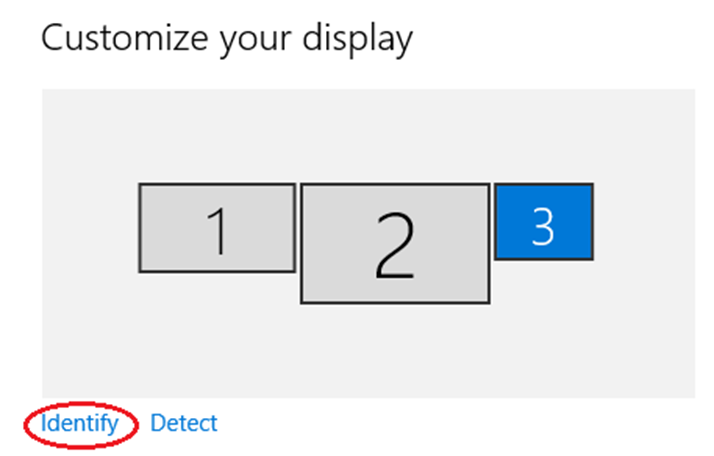
This will indicate which monitor is which; the numbers will appear on different screens:

Missing Monitors:
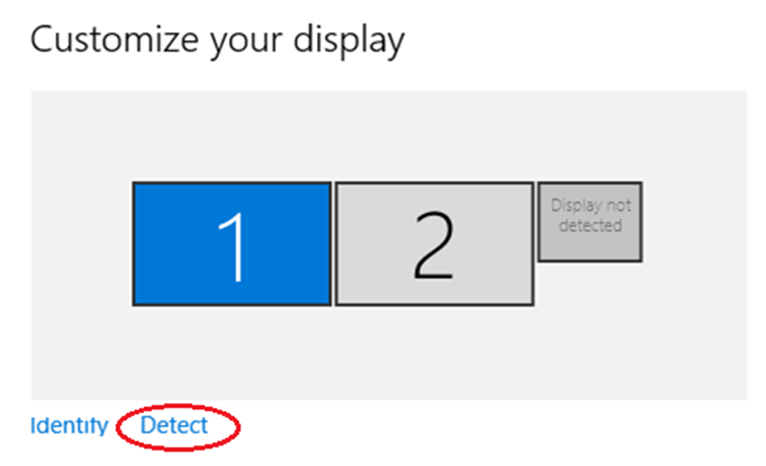
If a monitor is not showing up and it should be, click the Detect button. This will show any missing monitors that are detected by the computer.
Switching Order of Monitors:
Using laptops and move from using 2 screens to the laptop LCD and back, your settings can get into disarray. When you come back to your dual screens, and your mouse no longer flows from left screen to right, but circles around oppositely, you can adjust this.
Use the Identify button.
If they are backwards, left click and hold down the button on the monitor icon that represents the one that should be on your left and drag it in front of the other monitor icon and release.
Click Apply when finished.

Defining Main Display:
If your monitors now move the mouse between screens correctly, but your icons and start menu are on the wrong screen, select the screen you want to be primary, and checkmark Make this my main display.

Click Apply when finished.
Working with Three Monitors:
If you have 3 monitors; or you have a dock with 2 monitors and you have your laptop open; providing 3 monitors, you will get different options.
Disconnect this display will make the display dark and the computer will on interact with that particular screen.
You may want to do this if you have monitors up and don’t want to use your laptop’s built-in screen.
Click Apply when finished.
Note: You will have to make one of the monitors your Main screen. By default your laptop screen is going to be the default. Once you’ve made one of the other screens the Main screen, you can Disconnect this display for the laptop.