
Issue:
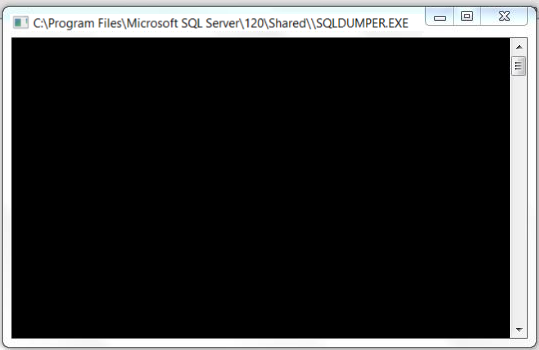
Users reported that when launching or working in Revit or Advance Steel in Windows 11, a Command prompt window referencing SQLDUMPER.EXE appears and disappears every 1 or 2 seconds. The window might show the spinning wheel looping, while the Command prompt window might appear and disappear too quickly to see its name.
It will state: C:\program Files\Microsoft SQL Server\120\shared\\SQLDUMPER.EXE
Causes:
An update to Windows 11 might trigger this issue for some drive systems.
Solutions:
Only proceed if you are confident with the instructions below. Otherwise, please contact IT.
Solution 1: Check/Adjust Permissions
Check permissions for the users and administrators to the program folder
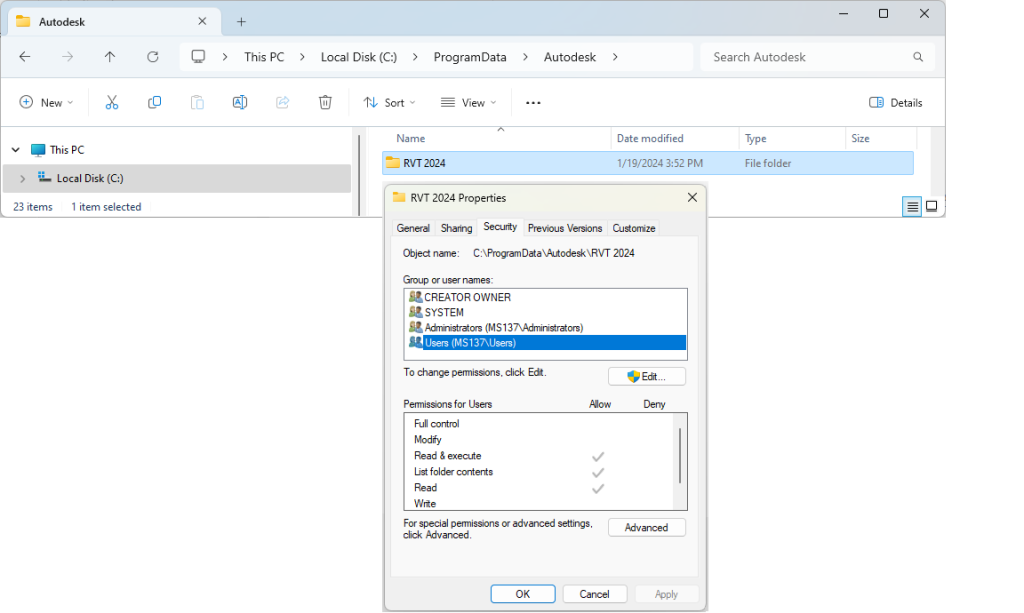
- Find RVT #### folder in C:\ProgramData\Autodesk (RVT2022, RVT2023, RVT2024, etc.) (or Advanced Steel if that is the software causing the issue).
- Right-click the folder, choose Properties, and choose the Security tab.
- Check if the permissions for users and administrators are set for Full control to Allow.
- Click Edit to change permissions.
- Submit the changes through the Apply button.
Note: Reboot the PC to see if the issue has been resolved. If not, proceed to the next step.
Solution: 2: Storage Disk Sector Size
Investigate storage disk sector size greater than 4 KB:
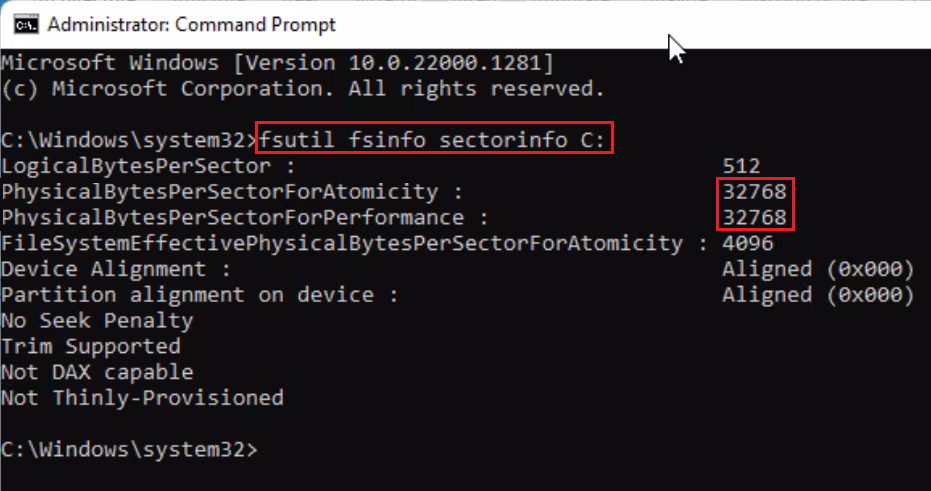
- Start the Command prompt as Administrator (click Start, type CMD, right-click and select Run as Administrator) then run the following command in the black DOS window (see below):
fsutil fsinfo sectorinfo C: - Look for the values of PhysicalBytesPerSectorForAtomicity and PhysicalBytesPerSectorForPerformance (shown in bytes). If any of these values are bigger than 4096 (like in the attached picture), proceed with the next step.
- Add a registry key that will force the sector size to be emulated as 4 KB: SetSectorSize.reg;
- To do so, download and run the above attachment. This will automatically add the value * 4095 to the registry.
Note: Reboot the system after changing the Windows registry to see SectorSize modifications.