This article is about how to view PDF documents using different apps, not how to edit them.
A PDF reader is a program used to open, view, and print PDF (Portable Document Format) files. PDF files are an excellent way to distribute documents containing text, images, and various other media types.
Many modern browsers can read PDF files, but PDF readers still have their place. These dedicated programs give users more ways to interact with the file and offer greater control over how the document appears on the screen.
PDF files were designed to appear and function the same on any piece of hardware, so you’ll find documents look the same on desktop, tablet, and phones.
Do I need a PDF editor or a PDF reader?
Deciding between a PDF editor and a PDF reader comes down to how you’ll use the software. PDF readers are primarily designed to view documents – although some include online collaboration tools like commenting, highlighting, and annotating content. Altering a PDF file is often limited to small edits and manipulation.
A PDF editor lets you design and create documents from scratch and make large changes. They almost always include powerful tools for power-users, like built-in OCR (Optical Character Recognition) software and digital signature tools.
Method PDF Readers
By default, PDF files open with your default Web Browser e.g. Edge, Chrome, Firefox, etc. Some software will change the default for opening PDF files. Here is your list of Method PDF Readers:
- Microsoft Edge
- Adobe Reader (Uncheck the bundled Security Scan Plus install)
- Autodesk Design Review
- Autodesk DWG TrueView
- Rhino
Method Professional PDF Editors
- Adobe Acrobat Pro: Allows users to view, navigate, and print layered content, and also offers layer management options like merging, flattening, and reordering. Acrobat can also create PDFs from other file formats, like Word or images, and can use OCR to create text layers. NOTE: Adobe Standard DC does not allow for layers.
- Adobe InDesign: Allows users to create and use layers.
- Adobe Express: Allows users to add up to 200 layers on desktop and 50 on mobile. Once locked, a layer’s order can’t be changed.
- Adobe Illustrator: Saves top-level layers as Acrobat layers within the PDF.
- Adobe Photoshop: Can save PDFs with layers that can be edited later.
- Bluebeam Revu (20 & 21): Can create layered PDFs from multiple existing PDFs, with each existing PDF becoming a separate layer in the new file.
PDF Printers
Adobe, Bluebeam, and Rhino all have a print to PDF option that will show up in your list of Windows Printers. In addition, Microsoft Windows has a Print to PDF option built into your list of printers. Other applications like Word and AutoCAD have the option to Export as a PDF.
How to change your default PDF app
Method 1: PDF Properties:
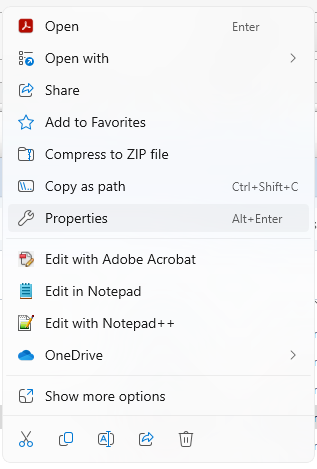
Right-click on a PDF file, click Properties
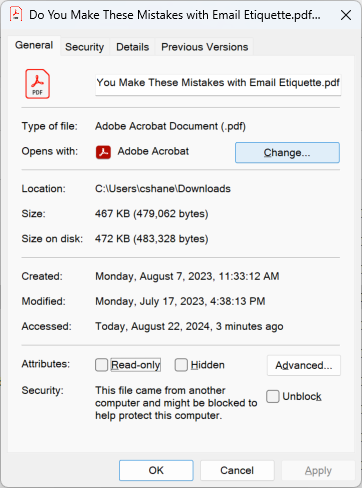
Click Change
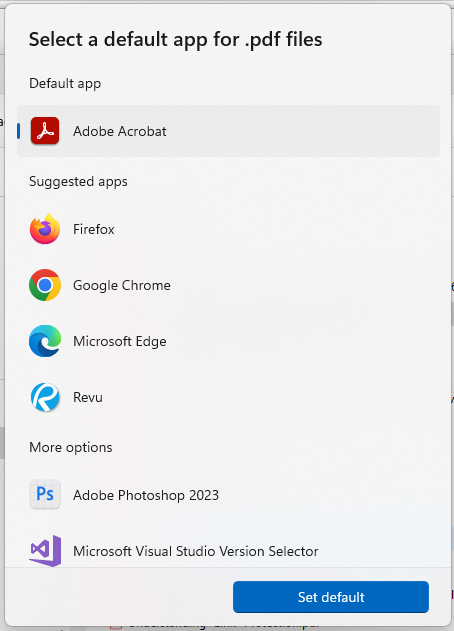
Select your default app from the drop-down and click Set Default
Method 2: Open With:
Right-click on a PDF file and select Open With
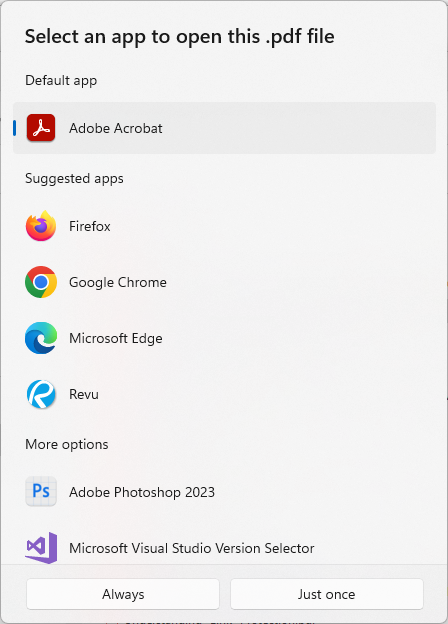
Click Choose another app
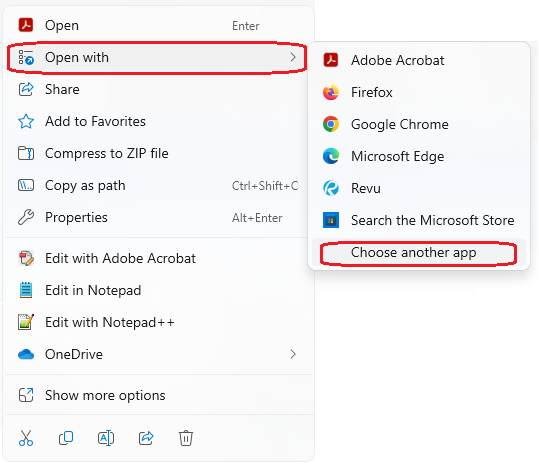
Select your preferred app from the drop-down list and click Always
Method 3: Change the default PDF reader in Windows 11
Click the Windows key or Search Bar
Type Default Apps

Click Default apps System settings
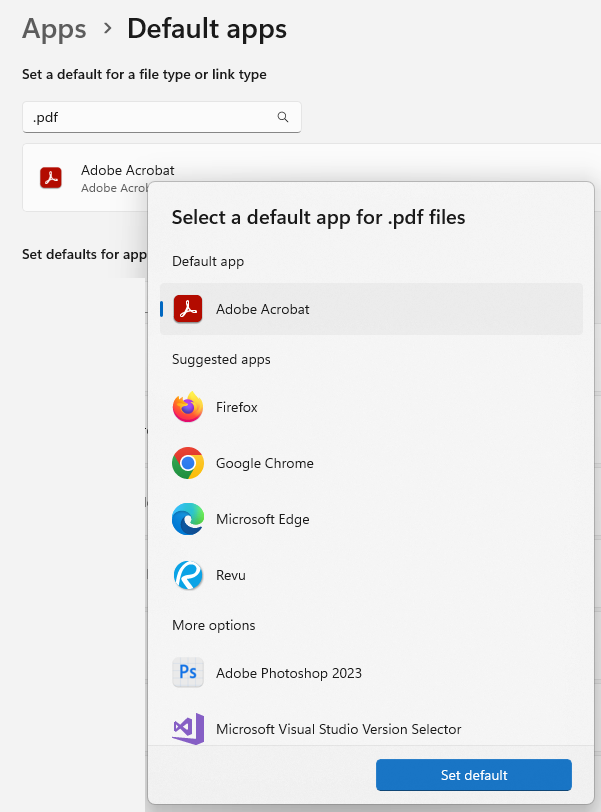
In the search bar under set default for a file type or link type, enter .pdf
Click on the current default
Select from the drop-down from the list of apps and click Set Default