
You can restore or recover your account credentials saved by Microsoft Authenticator.
Important:
- DO NOT sign in before restoring account credentials. If you have signed in, sign out before proceeding with account recovery. You may have to uninstall the Microsoft Authenticator App for it to sign you out.
- You can only backup and restore on the same device type: i.e. accounts backed up using an iOS device can only be restored on an iOS device. You cannot go from Apple to Android.
iOS
- Sign in to your iCloud account. This is where the credentials are stored.
- On your mobile device, open Authenticator, and select Begin recovery.
Important: Select the Begin recovery link before signing in. - Sign in to your recovery account using the personal Microsoft account you used during the backup process. Your account credentials are recovered to the new device.
I see “Action required” after restoring Authenticator accounts
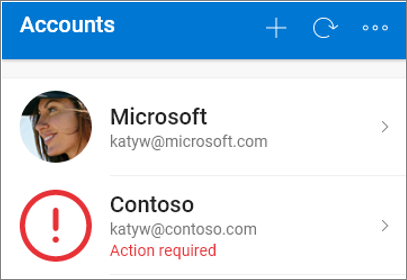
If you see the message Action required next to an account, it may require further verification before it can be used.
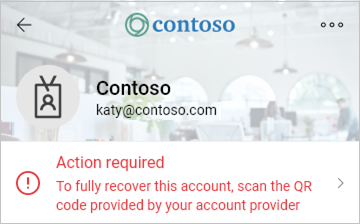
- In the Accounts screen of Authenticator, tap the account you want to recover to open the full screen view of the account.
- Tap the tile for the account you’re recovering and then tap the option to sign in to recover. Enter your password and then confirm your email address or phone number as additional verification.
Android
- On your mobile device, open Authenticator, and select Begin recovery.
Important: Select the Begin recovery link before signing in. - Sign in to your recovery account using the personal Microsoft account you used during the backup process. Your account credentials are recovered to the new device.
I see “Action required” after restoring Authenticator accounts
If you see the message Action required next to an account, it may require further verification before it can be used.
- In the Accounts screen of Authenticator, tap the account you want to recover to open the full screen view of the account.
- Tap the tile for the account you’re recovering and then tap the option to sign in to recover. Enter your password and then confirm your email address or phone number as additional verification.