
If you have a worksheet with data in columns that you need to rearrange into rows; use the Transpose feature. With it, you can quickly switch data from columns to rows, or vice versa.
For example, if your data looks like this, with Sales Regions in the column headings and Quarters along the left side:
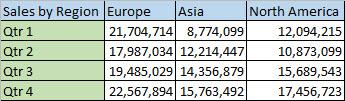
The Transpose feature will rearrange the table so that the Quarters are showing in the column headings and the Sales Regions can be seen as rows on the left, like this:

NOTE: If your data is in an Excel table, the Transpose feature won’t be available. You can convert the table to a range first, or you can use the TRANSPOSE function to rotate the rows and columns.
Here is the Transpose process:
1. Select the range of data you want to rearrange, including any row or column labels, and press Ctrl+C to Copy (do not Ctrl+X or Cut – it will not work).
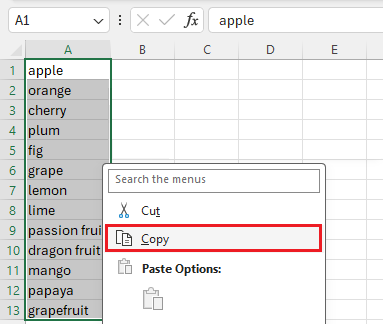
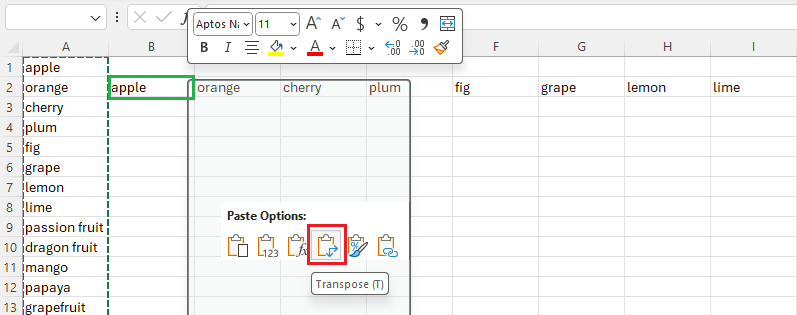
2. Choose a new location in the worksheet where you want to paste the transposed table, ensuring plenty of room to paste your data. The new table pasted will entirely overwrite any data or formatting already there.
Right-click over the top-left cell where you want to paste the transposed table, then choose the Transpose Icon.
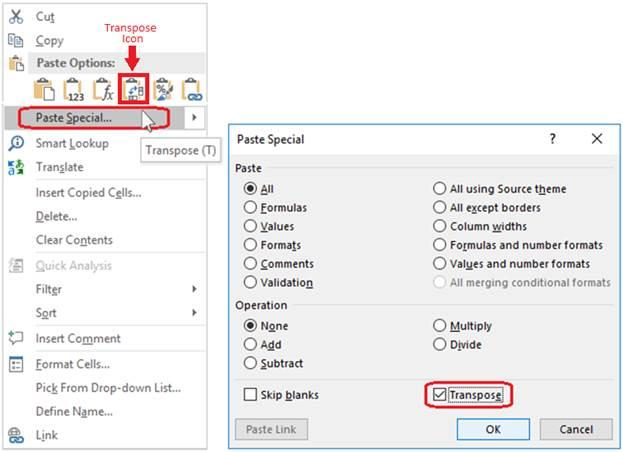
3. Alternatively, you can right-click the location, click on Paste Special then select Transpose.
4. You will see both sets of data; the column and the row.

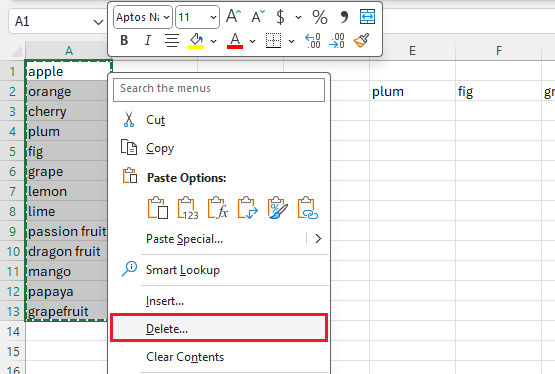
5. After rotating the data successfully, you can delete the original column; the data in the new row will remain intact.
Tips for Transposing Data
- If your data includes formulas, Excel automatically updates them to match the new placement. Verify these formulas use absolute references—if they don’t, you can switch between relative, absolute, and mixed references before you rotate the data.
- You are not limited to Data Ranges, you can grab an entire Row, copy it, paste it into a different cell, and select Transpose.
- You can also do the inverse; turn a row into a column.
Leave a Reply
Your email is safe with us.