
When you want to display a list of values that users can choose from, you can add a combo box to your worksheet.
Note: If your Excel Ribbon does not have the Developer tab do the following;
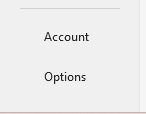
Click File > Options (Once you click File, Options is in the bottom left corner.)
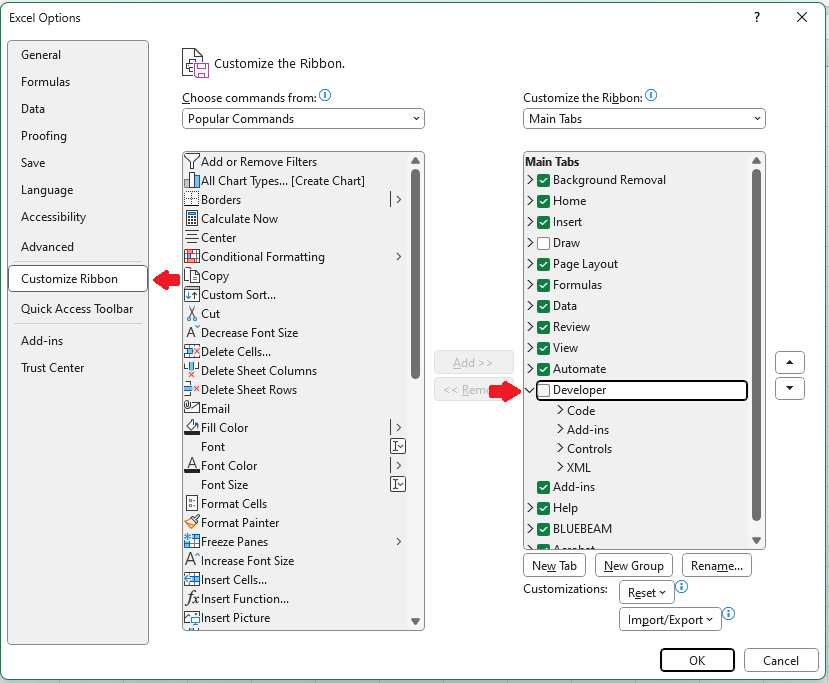
In the Excel Options dialog box click Customize Ribbon. In the Main Tabs list, check the Developer box, then click OK.
Add a combo box to a worksheet
You can make data entry easier by letting users choose a value from a combo box. A combo box combines a text box with a list box to create a drop-down list.
To add a Form Control Combo Box
1. Pick a column that you can hide on the worksheet and create a list by typing one value per cell.
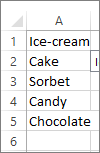
Note: You can also create the list on another worksheet in the same workbook.
2. Click Developer > Insert.
3. Pick Combo box (Form Control).
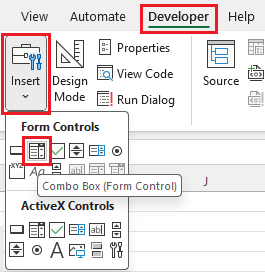
4. Click the cell where you want to add the combo box and drag to draw it.
Tips:
– To resize the box, point to one of the resize handles, and drag the edge of the control until it reaches the height or width you want.
– To move a combo box to another worksheet location, select the box and drag it to another location.
Format a Form Control combo box
1. Right-click the combo box and pick Format Control.
2. Click Control and set the following options:
Input range: A1:A5
Cell link: B1
Drop down lines: 5
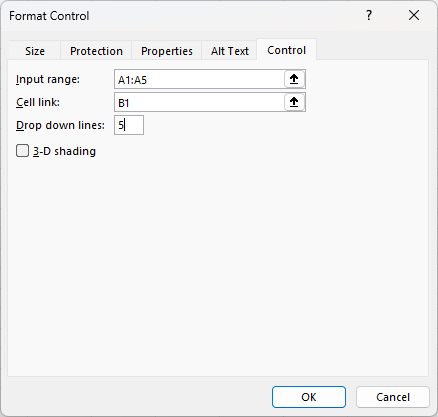
– Input range: Type the range of cells containing the list of items.
– Cell link: The combo box can be linked to a cell where the item number is displayed when you select an item from the list. Type the cell number where you want the item number displayed.
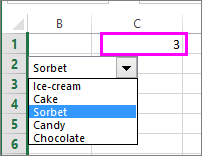
For example, cell C1 displays 3 when the item Sorbet is selected, because it’s the third item in our list.
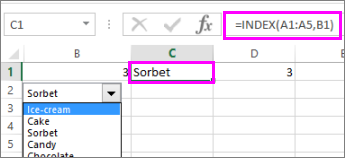
Tip: You can use the INDEX function to show an item name instead of a number. In our example, the combo box is linked to cell B1 and the cell range for the list is A1:A5. If the following formula, is typed into cell C1: =INDEX(A1:A5,B1), when we select the item “Sorbet” is displayed in C1.
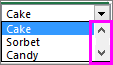
– Drop-down lines: The number of lines you want displayed when the down arrow is clicked. For example, if your list has 10 items and you don’t want to scroll you can change the default number to 10. If you type a number that’s less than the number of items in your list, a scroll bar is displayed.
3. Click OK.