
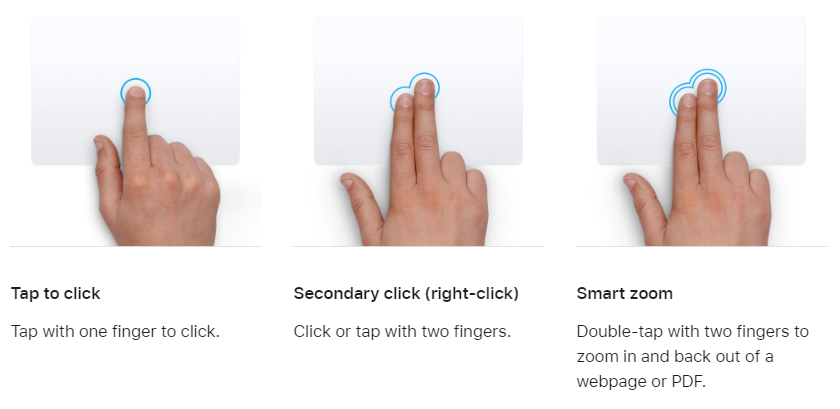
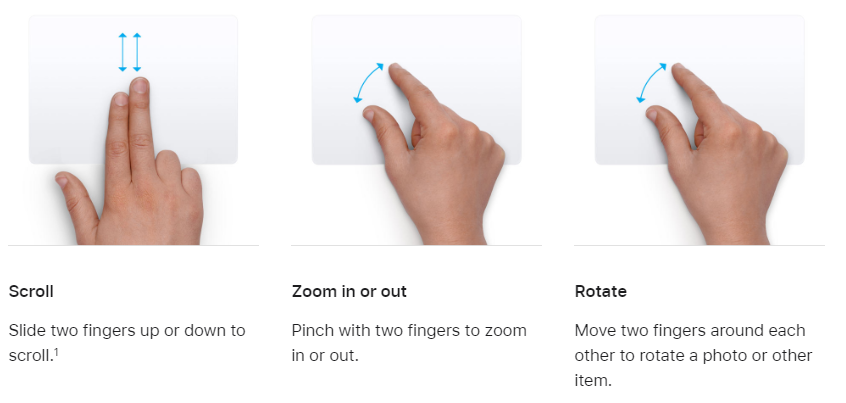
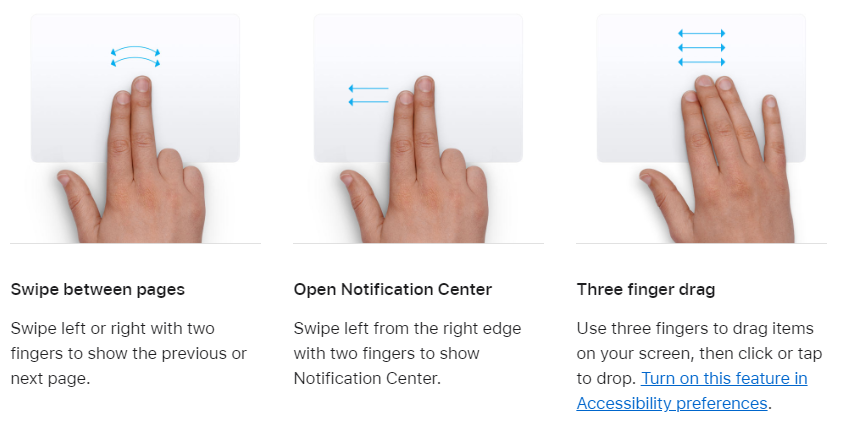
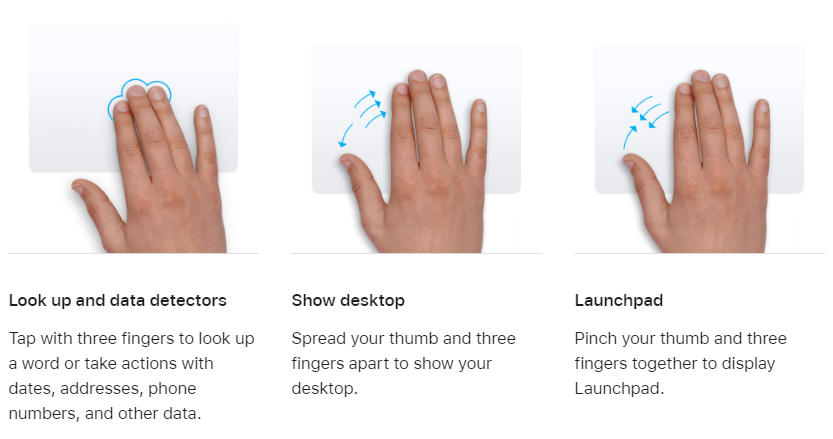
With a Multi-Touch trackpad or Magic Mouse, you can tap, swipe, pinch, or spread one or more fingers to perform useful actions.
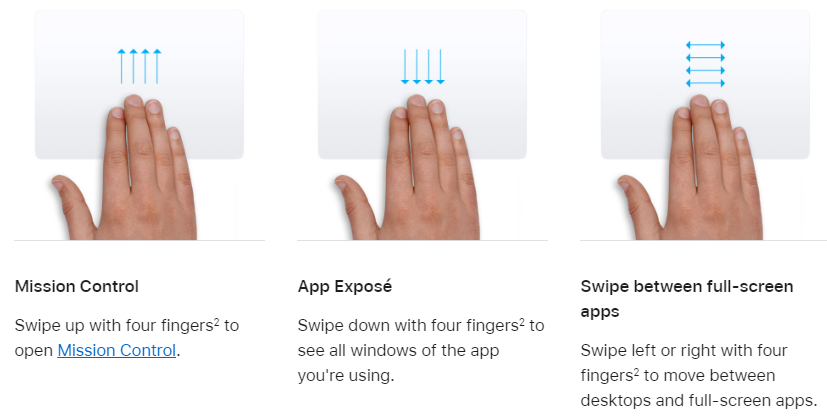
Trackpad gestures
For more information about these gestures, choose Apple menu  > System Settings (or System Preferences), then click Trackpad. You can turn a gesture off, change the type of gesture, and learn which gestures work with your Mac.
Trackpad gestures require a Magic Trackpad or built-in Multi-Touch trackpad. If your trackpad supports Force Touch, you can also Force click and get haptic feedback.
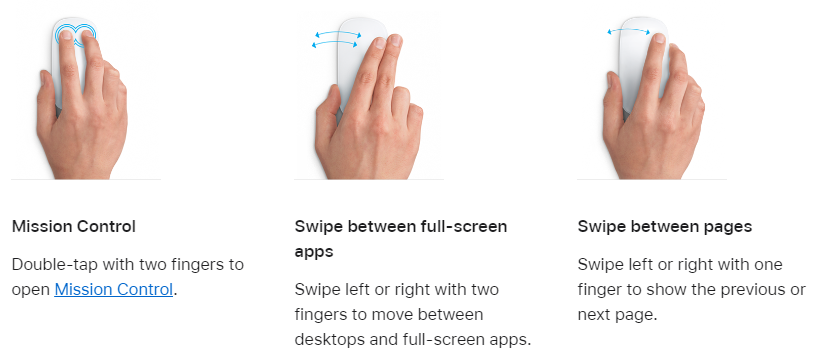
Mouse gestures
For more information about these gestures, choose Apple menu > System Settings (or System Preferences), then click Mouse. There you can turn a gesture off, change the type of gesture, and learn which gestures work with your Mac. Mouse gestures require a Magic Mouse.
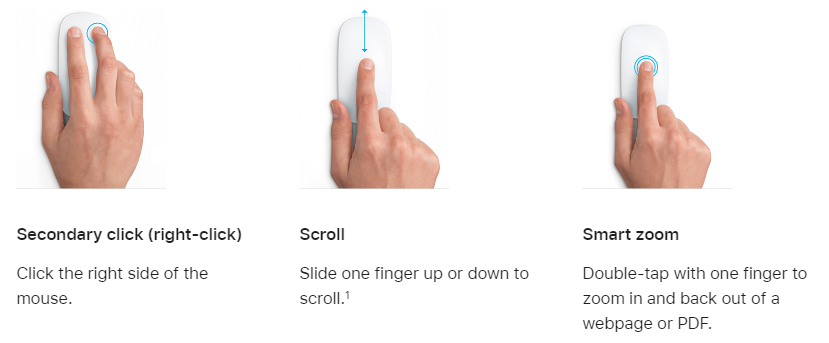
1. You can turn off trackpad scrolling in Accessibility settings.
2. In some versions of macOS, this gesture uses three fingers instead of four.
Use trackpad and mouse gestures on Mac
When you use an Apple trackpad or a Magic Mouse with your Mac, you can use gestures—such as click, tap, pinch, and swipe—to zoom in on documents, browse through music or webpages, rotate photos, open Notification Center, and more.
Trackpad gestures
Use one or more fingers on the surface of your trackpad to click, tap, slide, swipe, and more. For example, to move between pages of a document, swipe left or right with two fingers.
- To view the trackpad gestures you can use on your Mac, and a brief video demonstrating each gesture, choose Apple menu > System Settings, then click Trackpad
 in the sidebar. (You may need to scroll down.)You can also turn off or customize gestures in Trackpad settings.
Mouse gestures
Use one or more fingers on the surface of your mouse to click, tap, slide, or swipe items. For example, to move between pages of a document, swipe left or right with one finger.
- To view the mouse gestures you can use on your Mac, and a brief video demonstrating each gesture, choose Apple menu > System Settings, then click Mouse
 in the sidebar. (You may need to scroll down.)You can also turn off or customize gestures in Mouse settings.