
Menu bar
The menu bar runs along the top of the screen on your Mac. The menu bar contains the Apple menu  , app menus, and various status menus, such as Wi-Fi
  , Spotlight
  , and Siri
  . You can customize which status items are shown in Control Center settings. Control Center
  and Notification Center (click the date and time) are always available in the menu bar.
Use Control Center on Mac
Control Center on Mac gives you quick access to key macOS settings—such as AirDrop, Wi-Fi, or Focus. You can customize Control Center to add other items, such as accessibility shortcuts, battery status, or fast user switching.
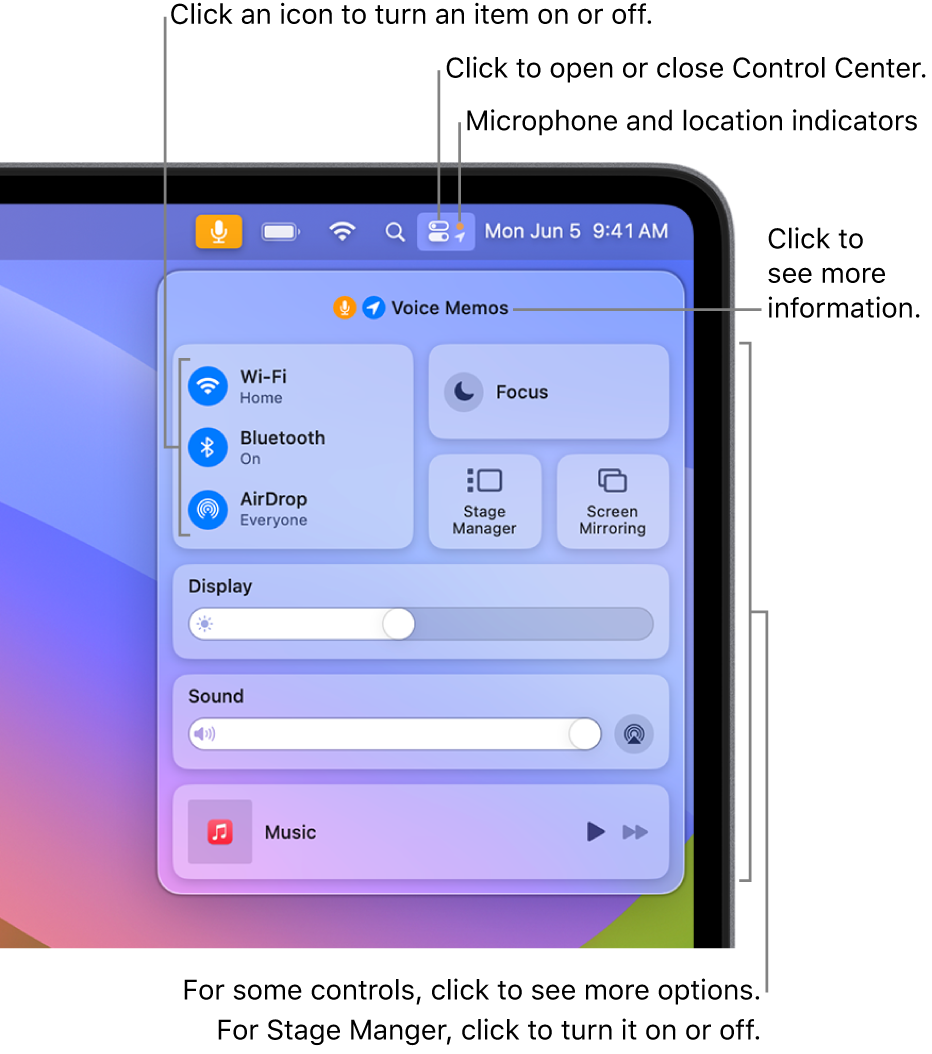
An orange dot  next to the Control Center icon in the menu bar indicates the microphone on your Mac is in use; a green dot
  indicates a camera is in use; and, an arrow
  indicates your location is in use. If both the microphone and a camera are in use, you only see a green dot. When you open Control Center, the top of the window may contain a field that shows which apps are using your microphone, location, or camera. You can click that field to open the Privacy window, which may have additional information (macOS 13.3 or later).
Use Control Center
- On your Mac, click Control Center in the menu bar.
- Do any of the following with items in Control Center:
- Drag a slider to increase or decrease a setting—for example, drag the Sound slider to adjust the volume on your Mac.
- Click an icon to turn a feature on or off—for example, click AirDrop or Bluetooth® to turn it on or off.
- Click an item (or its arrow
 ) to show more options—for example, click Focus to show your Focus list and turn a Focus on or off, or click Screen Mirroring to choose a target display.
Tip: If you often use an item, you can drag it from Control Center to the menu bar, to keep it handy there. To remove the item from the menu bar, press and hold the Command key while you drag the item out of the menu bar.
Customize Control Center
- On your Mac, choose Apple menu > System Settings, then click Control Center
 in the sidebar. (You may need to scroll down.)
 - Choose settings for the items in these sections on the right.
- Control Center Modules: The items in this section are always shown in Control Center; you can’t remove them. You can choose to also show them in the menu bar. Click the pop-up menu next to an item, then choose an option.
- Other Modules: You can add the items in this section to Control Center and the menu bar. Turn each option below an item on or off. Some items may have additional settings available.
- Menu Bar Only: You can choose options for the menu bar clock, and add other items (such as Spotlight, Siri, Time Machine, and VPN status) to the menu bar.
Change Control Center settings on Mac
On your Mac, use Control Center settings to choose which items to include in Control Center and which items appear in the menu bar.
To change these settings, choose Apple menu > System Settings, then click Control Center in the sidebar. (You may need to scroll down.)
Control Center Modules
| Option | Description | ||||||||||
|---|---|---|---|---|---|---|---|---|---|---|---|
| Wi-FiBluetooth®AirDropFocusStage ManagerScreen MirroringDisplaySoundNow Playing | These modules are always shown in Control Center. You can choose when they should also be shown in the menu bar.Click the pop-up menu next to a module, then choose an option:Show in Menu Bar: Always show the status icon in the menu bar.Show When Active: Only show the status icon in the menu bar when the module is active. This option is available for Focus, Screen Mirroring, Display, Sound, and Now Playing.Don’t Show in Menu Bar: Never show the status icon in the menu bar. | ||||||||||
Other Modules
| Option | Description | ||||||||||
|---|---|---|---|---|---|---|---|---|---|---|---|
| Accessibility ShortcutsBatteryHearingFast User SwitchingKeyboard Brightness | These modules can be added to Control Center and the menu bar. Some modules have additional options available.Turn options below each module on or off. These options are available for each module:Show in Menu Bar: Always show the status icon in the menu bar.Show in Control Center: Include the module in Control Center.If you’re using a Mac laptop and choose to show Battery in the menu bar, you can also show the percentage of battery charge (the percentage is always shown when Battery is in Control Center).To set menu bar options for Fast User Switching, click the pop-up menu next to Show in Menu Bar (below Fast User Switching), then choose an option:Don’t Show: Don’t Show Fast User Switching in the menu bar.Full Name: Show the full name of the user in the menu bar.Account Name: Show the name of the user account in the menu bar.Icon: Show the Fast User Switching icon  in the menu bar. in the menu bar. | ||||||||||
Menu Bar Only
| Option | Description | ||||||||||
|---|---|---|---|---|---|---|---|---|---|---|---|
| Clock | The clock is always shown in the menu bar.Click Clock Options, then choose how you want the date and time displayed.Below Date, click the “Show date” pop-up menu, then choose either Always, When Space Allows, or Never. You can also choose whether to have the day of the week shown in the menu bar.Below Time, choose a clock style, whether to use a 24-hour clock, and whether to display the time with seconds. You can also choose to have the time announced periodically with a voice of your choice. | ||||||||||
| SpotlightSiriTime MachineVPN | These modules can be shown in the menu bar.Click the pop-up menu next to a module, then choose an option:Show in Menu Bar: Always show the status icon in the menu bar.Don’t Show in Menu Bar: Never show the status icon in the menu bar. | ||||||||||
| Automatically hide and show the menu bar | Choose when to hide and show the menu bar:Always: Always hide and show the menu bar.On Desktop Only: Hide and show the menu bar when not using an app in full screen.In Full Screen Only: Hide and show the menu bar when using an app in full screen.Never: Never hide the menu bar.Move the pointer to the top of the screen to show the menu bar when it’s hidden. | ||||||||||
| Recent documents, applications, and servers | Choose how many items to show in the Recent Items menu command. Items you’ve used recently are listed in the Apple menu , so that you can easily open the items from there.This setting also determines how many recent items appear in app menus, such as the Open Recent option in the File menu in TextEdit. | ||||||||||
Use Notification Center on Mac
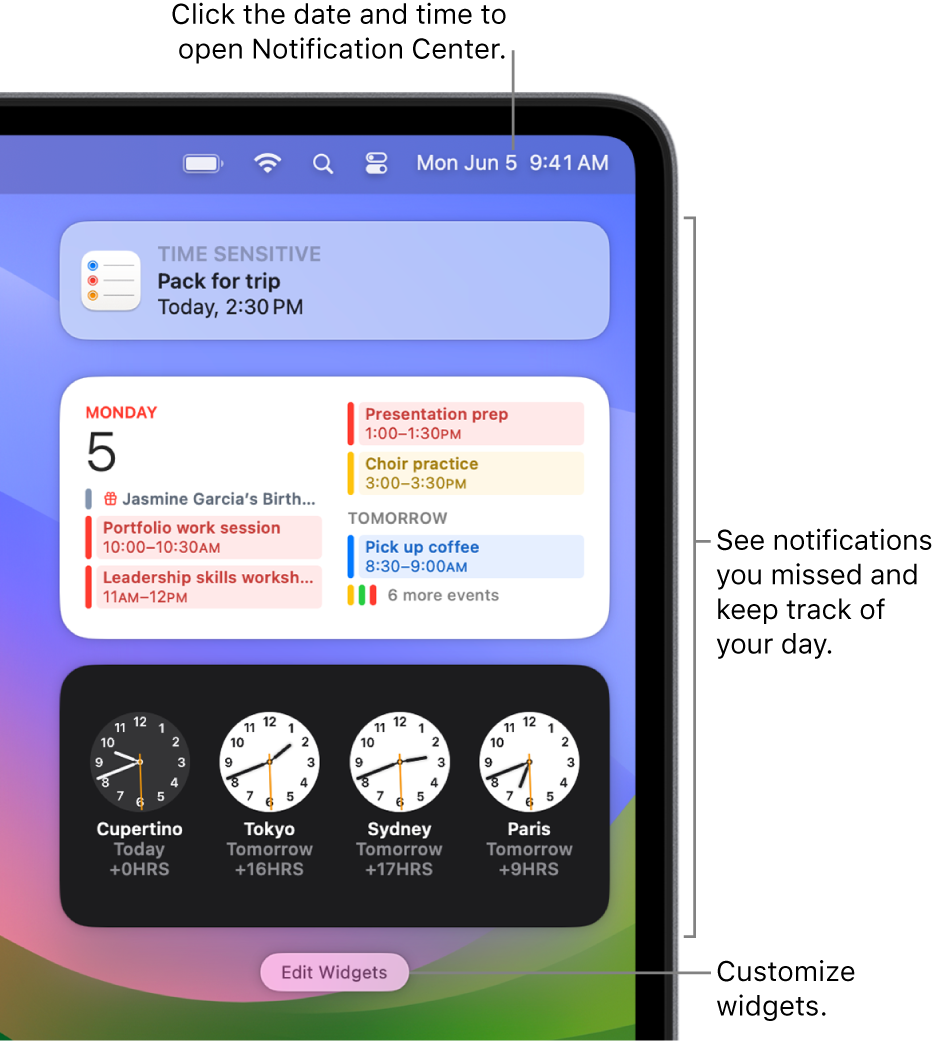
In Notification Center on your Mac, you can catch up on notifications you missed and use widgets to view appointments, birthdays, the weather, top headlines, and more right from the desktop.
Open or close Notification Center on your Mac
On your Mac, do any of the following:
- Open Notification Center: Click the date and time in the menu bar, or swipe left with two fingers from the right edge of the trackpad.
- Close Notification Center: Click anywhere on the desktop, click the date and time in the menu bar, or swipe right with two fingers toward the right edge of the trackpad.
Use notifications in Notification Center on your Mac
In Notification Center, move the pointer over a notification, then do any of the following:
- Expand or collapse a stack of notifications: If an app’s notifications are grouped, multiple notifications are stacked. To expand the stack and show all of the notifications, click anywhere in the top notification. To collapse the stack, click “Show less.”
- Take action: Click the action. For example, click Snooze in a notification from the Calendar app, or click Reply in a notification from the Mail app.If an action has an arrow
 next to it, click the arrow for more options. For example, to reply to a call using the Messages app, click the arrow next to Decline, then choose Reply with Message.
 - See more details: Click the notification to open the item in the app. If an arrow is shown to the right of the app name, click the arrow to show details in the notification.
- Change an app’s notification settings: If an arrow is shown to the right of the app name, click the arrow, click the More button
 , then choose to mute or turn off notifications, or show the app’s notification settings in Notifications settings.
 - Clear a single notification or all notifications in a stack: Click the Clear or Clear All button
 .
.
Use widgets in Notification Center on your Mac
In Notification Center, do any of the following:
- See more details: Click anywhere in a widget to open the related settings, app, or webpage. For example, click in a Clock widget to open Date & Time settings, the Reminders widget to open the Reminders app, or the Weather widget to open the browser and view the complete forecast.
- Resize a widget: Control-click a widget, then choose a different size.
- Remove a widget: Press and hold the Option key while you move the pointer over the widget, then click the Remove button
 .
.
You can change which widgets are shown in Notification Center and customize them.
Tip: If you need to minimize distractions by silencing all notifications—or allowing only certain notifications to appear—use a Focus, such as Do Not Disturb or Work.