Overview
You can connect to shared computers and file servers on your network, including Mac and Windows computers that have file sharing turned on, and servers that use protocols such as SMB.
You can connect by either browsing or entering the computer’s or server’s network address.
Connect to a computer or server by browsing
- On your Mac, click the Finder icon
 in the Dock to open a Finder window, then click Network in the Locations section of the sidebar. If no items appear in the Locations section of the sidebar, hold the pointer over the word Locations, then click the arrow >.
 - In the Finder window, double-click the computer you want to connect to, then click Connect As. If you’re connecting to a Mac that has screen sharing turned on, and you have the appropriate privileges, you can also click Share Screen.
- Select how you want to connect to the Mac:
- Guest: You can connect as a Guest user if the shared computer permits guest access.
- Registered User: Connect to the other Mac using a valid login name and password. If “Only these users” is selected on the other Mac, make sure the login name you’re using is on the list of allowed users.
- Using an Apple ID: Connect to the other Mac using an Apple ID. You must be set up in Users & Groups settings with this Apple ID, on both this Mac and the other Mac.
- If necessary, enter your user name and password, then select volumes or shared folders on the server. In some cases you need the network area or workgroup for the shared computer. If you don’t have this information, contact the computer’s owner or your network administrator.
Tip: To make it easier to connect to the computer in the future, select “Remember this password in my keychain” to add your user name and password for the computer to your Keychain.
Connect to a computer or server by entering its address
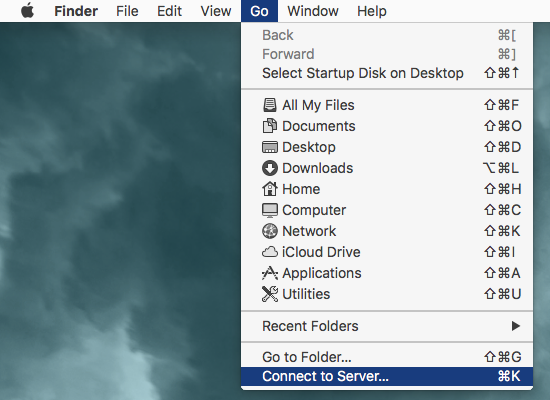
- In the Finder on your Mac, choose Go > Connect to Server.
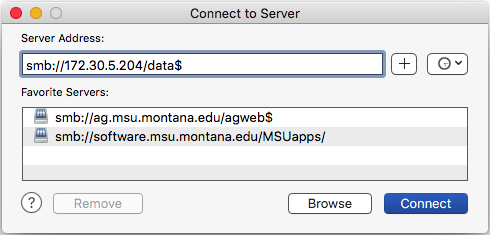
- Type the network address for the computer or server in the Server Address field. For example: Use one of these formats:
- smb://DNSname/sharename (DNS name looks like methodfs)
- smb://IPAddress/sharename (IP Address looks like 192.168.10.12)
- You can also use the computer name.
- Click Connect.
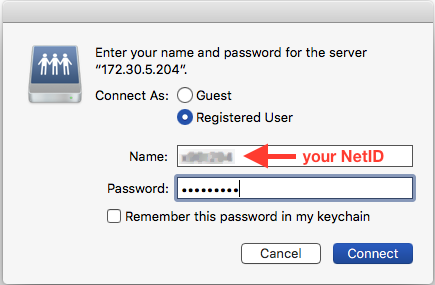
- Select how you want to connect to the Mac:
- Guest: You can connect as a Guest user if the shared computer permits guest access.
- Registered User: Connect to the other Mac using a valid login name and password. If “Only these users” is selected on the other Mac, make sure the login name you’re using is on the list of allowed users.
- Using an Apple ID: Connect to the other Mac using an Apple ID. You must be set up in Users & Groups settings with this Apple ID, on both this Mac and the other Mac.
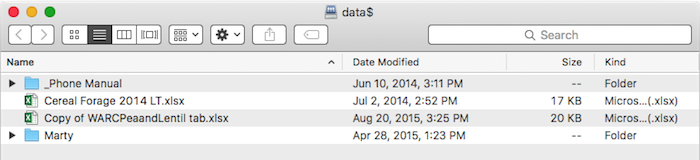
- If necessary, enter your user name and password, then select the server volumes or shared folders. To make it easier to connect to the computer in the future, select “Remember this password in my keychain” to add your user name and password for the computer to your keychain.
Reconnect to recent servers
Here are some ways to make it easy to reconnect to shared computers and servers you frequently use:
On your Mac, do any of the following:
- Choose Apple menu
 > Recent Items, then choose from the list of recent servers.
 - In the Finder , choose Go > Connect to Server, click the pop-up menu to the far right of the Server Address field, then choose a recent server.
- Add shared computers, network areas, and workgroups to the Finder sidebar. Select the item, then choose File > Add To Sidebar.
- Add a shared computer or server to your list of favorites. In the Finder, choose Go > Connect to Server, enter the server address, then click the Add button +.
If you can’t locate a shared computer or server or connect to it, it may not be available, or you may not have permission to connect to it. Contact the person who owns the computer or the network administrator for help.