
Your experience may look a little different from the pictures below depending on your type of phone.
However, the instructions should be similar between iPhones and various Android models.
Set up email on an iPhone
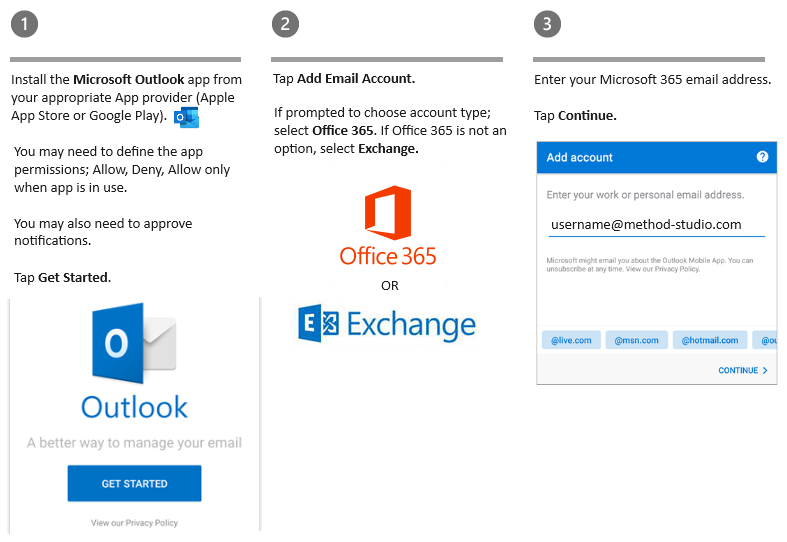
- On iPhone, go to the App Store, search for Outlook, and install the Outlook app.
- Sign in with your Apple ID, if prompted.
- Open the app, tap Get Started, and choose to allow notifications.
- On the Add Account page, enter your Microsoft 365 email address and tap Add Account.
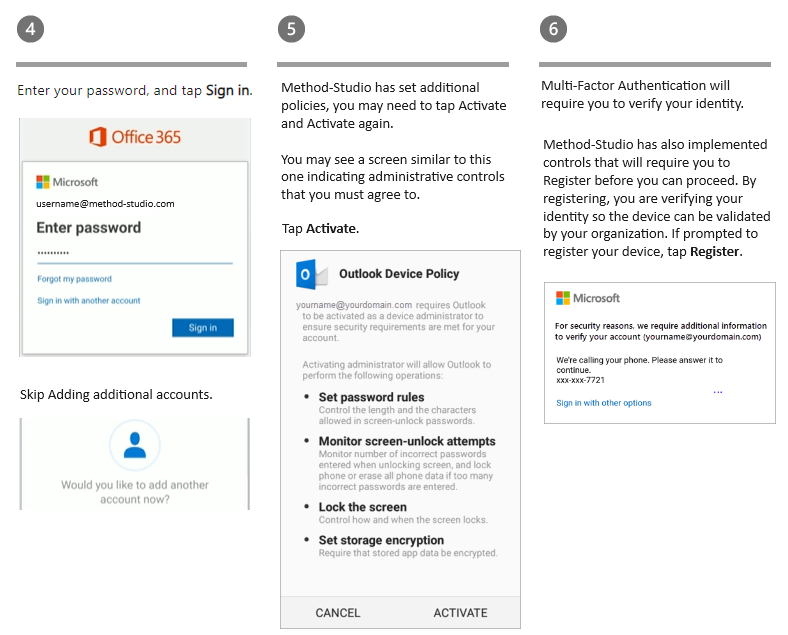
- Enter your password, and tap Sign in.
- Optionally, you can add more accounts, or tap Maybe Later.
- After swiping through the guided tour, you will see your email, calendar, and contacts in the Outlook mobile app.
- Registering device and Multi-Factor Authentication.
Set up email on an Android phone
- On Android, go to the Play Store, search for Outlook, and install the Outlook app.
- Open the app and tap Get Started.
- Enter your Microsoft 365 email address and password, and tap Sign in.
- Optionally, you can add more accounts, or tap Skip.
- After swiping through the guided tour, you will see your email, calendar, and contacts in the Outlook mobile app.
- Activesync approval.
- Registering device and Multi-Factor Authentication.