
Change, Repair, or Remove Enscape
Once Enscape has been installed, if you want to change the installation location, or if you have to repair the installation, or if for some reason you would want to uninstall Enscape, then you can run the Enscape .msi installer again to perform these processes.
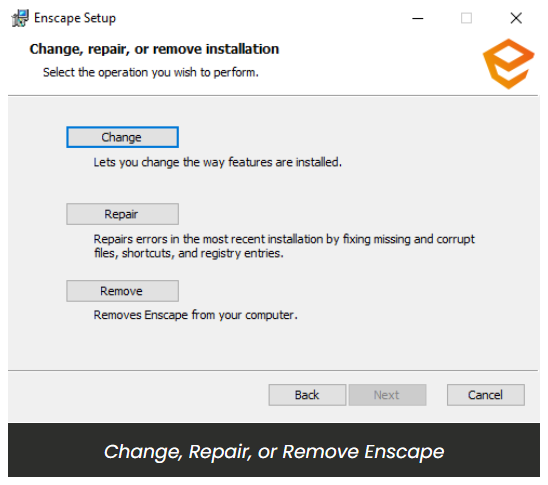
Change the Enscape Installation
Clicking on Change will return you to the Product Features window, where you can again choose which subfeatures you would like to install or remove.
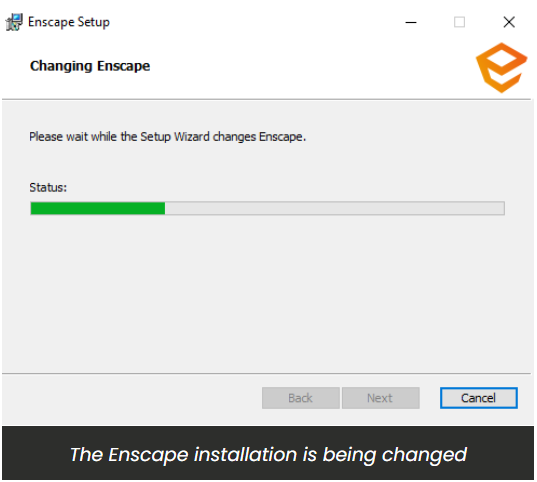
The Product Features window will then be shown, where you can alter which subfeatures of Enscape are installed.
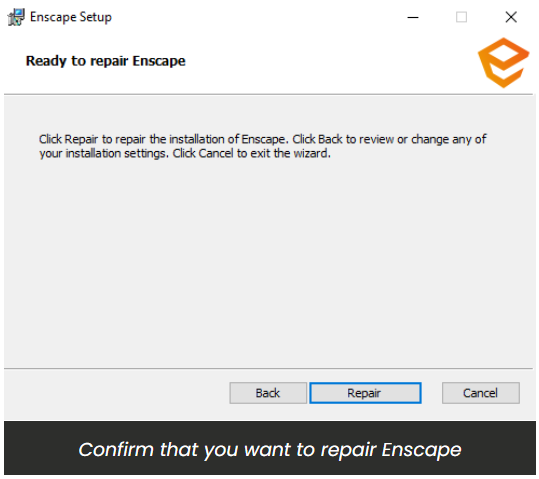
Repair the Enscape Installation
Clicking on Repair will request that you confirm that you want to perform this.
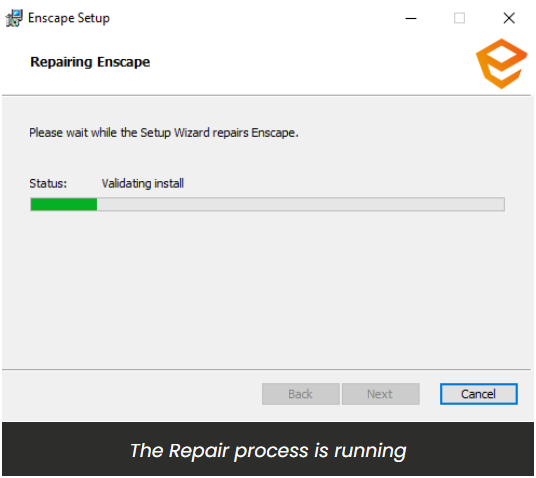
The repair process will then be seen to be running in the installer window.
On successful completion, the installer will confirm this for you.
NOTE:
IT Managers are advised to disable InTune when updating Enscape as it can cause a bug to occur where a previous version of Enscape remains installed.
Remove Enscape from a Machine
Clicking on Remove will result in the installer asking you to first confirm that you want to remove Enscape.
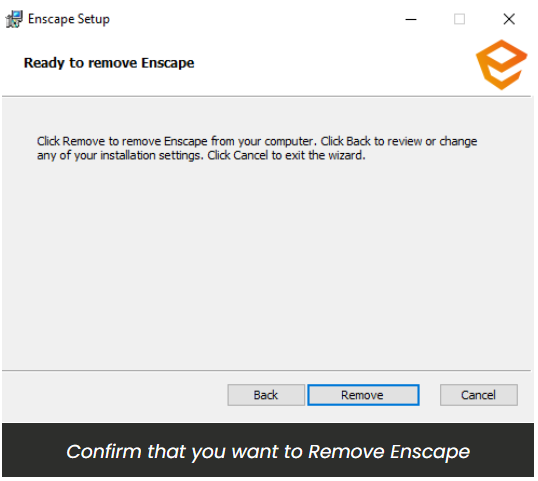
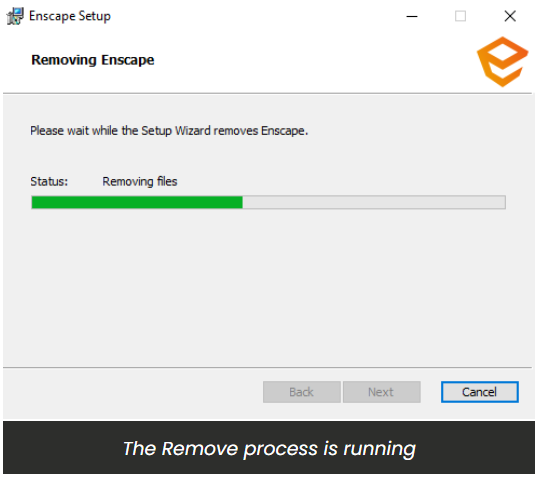
If you confirm that you do want to remove Enscape, the process will begin and you can see this running in the installer window.
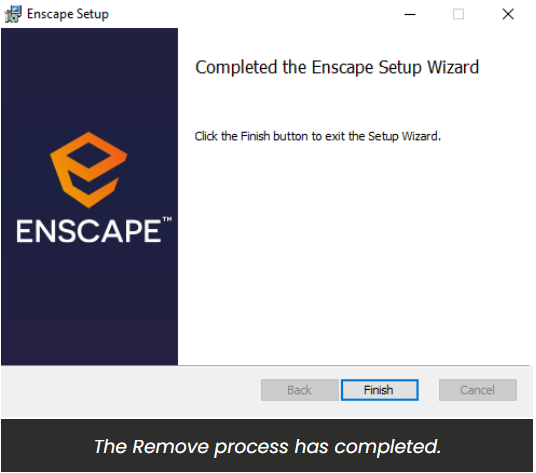
Once any of the above processes have finished, the installer will confirm that the process is complete. You can then click the Finish button to close the installer.
So, this concludes the initial installation process, and once you open the CAD that you want to use Enscape with, you will find that there is an Enscape menu, and / or a ribbon / toolbar available in the CAD.
NOTE:
You may have to enable the toolbar from the Toolbar Workspace options of that associated CAD. If you incur issues when trying to make the Enscape Menu / Toolbar visible, then please refer to this article on the steps to make Enscape visible in the associated CAD.
Installation Error Messages
If you have your CAD open when trying to install, repair, change, or remove Enscape, you should get a warning message telling you which CAD is blocking the installation process. You then have the choice between; Close the applications and attempt to restart them. or, Do not close applications. A reboot will be required, which will need to be done before Enscape becomes available for use in the CAD.
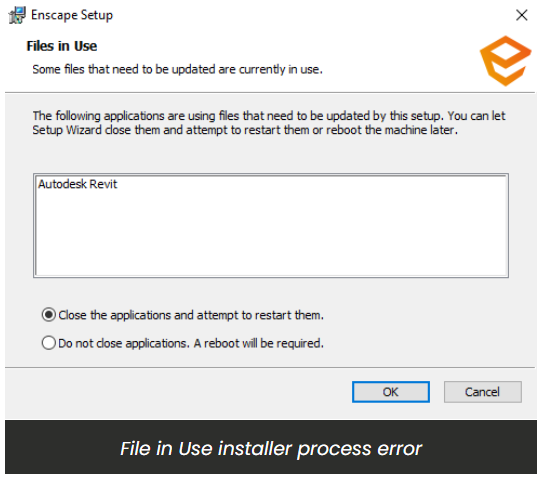
Once you decide on which method to use Click OK, which will then continue to process.
If the installer is unable to close and restart the application, then you will get the following message:
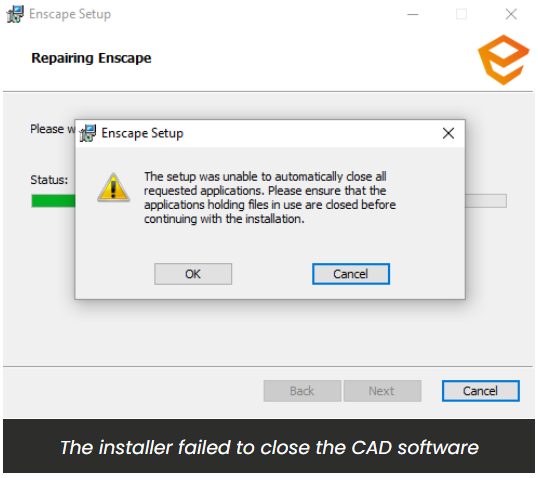
Click Cancel to cancel the process, in which case you should close the CAD blocking the process, and then try to run the installer again.
Click OK to allow the installer to continue the process. Once complete, you will get the following message:
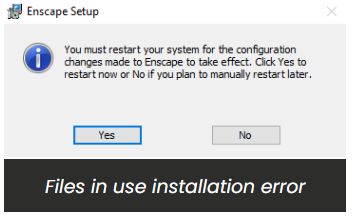
Clicking Yes will automatically restart your operating system, so you should make sure any unsaved documents open in other applications are saved first. Clicking No will mean that you will manually have to restart your operating system before the changes take effect.