
Connecting Laptops to Monitors:
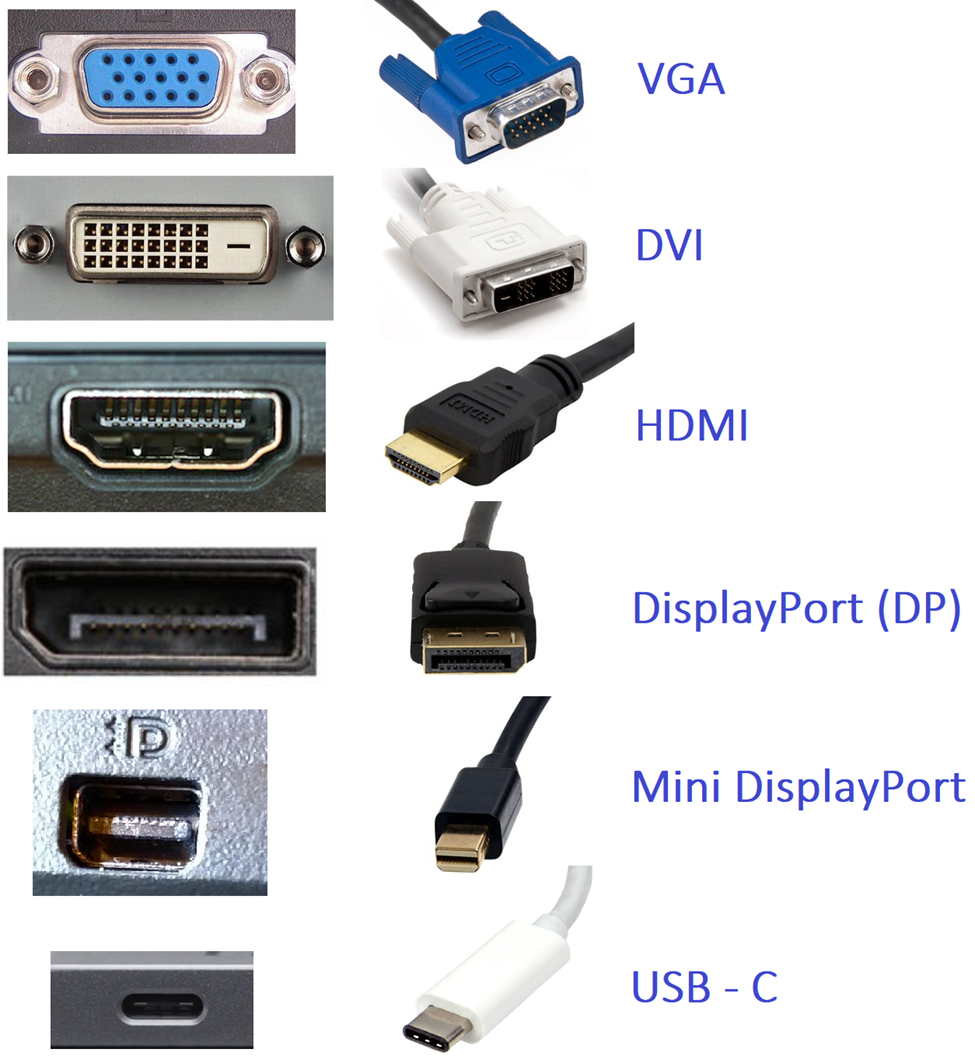
Most laptops have HDMI ports. Some older laptops have VGA ports, some also have VGA ports, DVI ports, DisplayPorts, Mini DP, or USB-C. All modern TVs and monitors have HDMI ports. Older monitors and TVs will have VGA.
Here is how to identify your connections:
Laptops: Choose what closing the Lid does
One issue when working with Multiple Monitors and docking stations is closing the lid on your laptop.
Laptop default settings is to put the computer to sleep when the lid closes.
Here are instructions on how to change that.
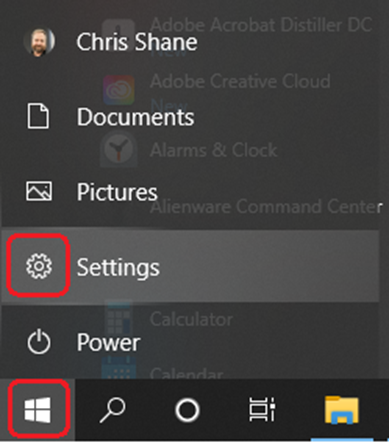
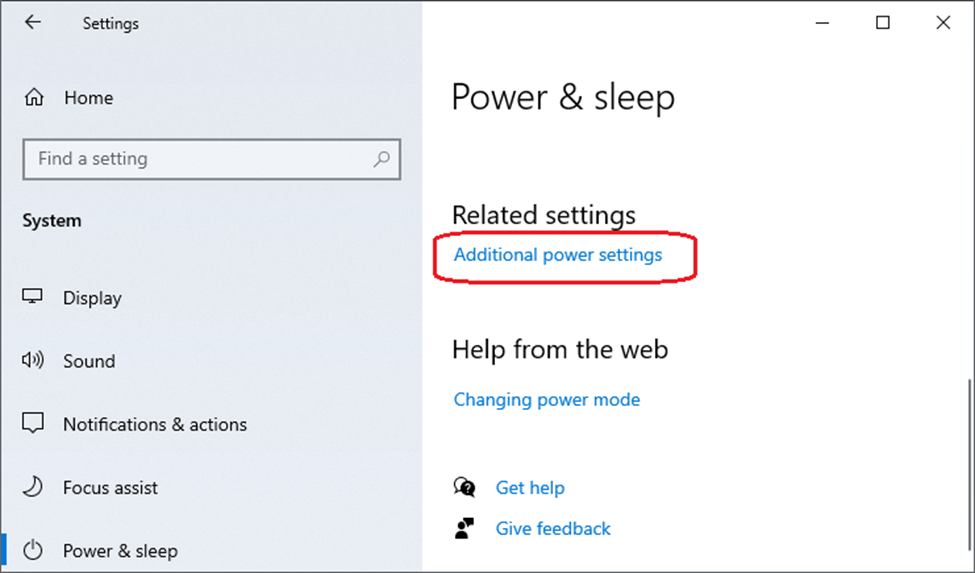
Click Start and click Settings (the gear icon on the left).
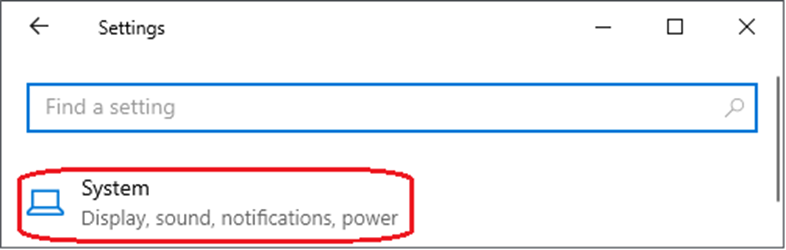
Click System.
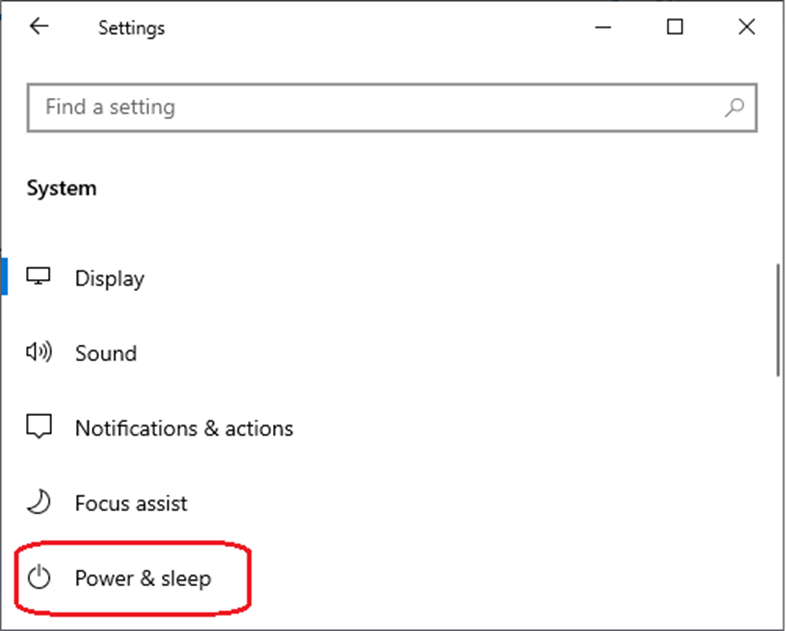
Click Power & Sleep.
Under the Related Settings section, click Additional Power Settings.
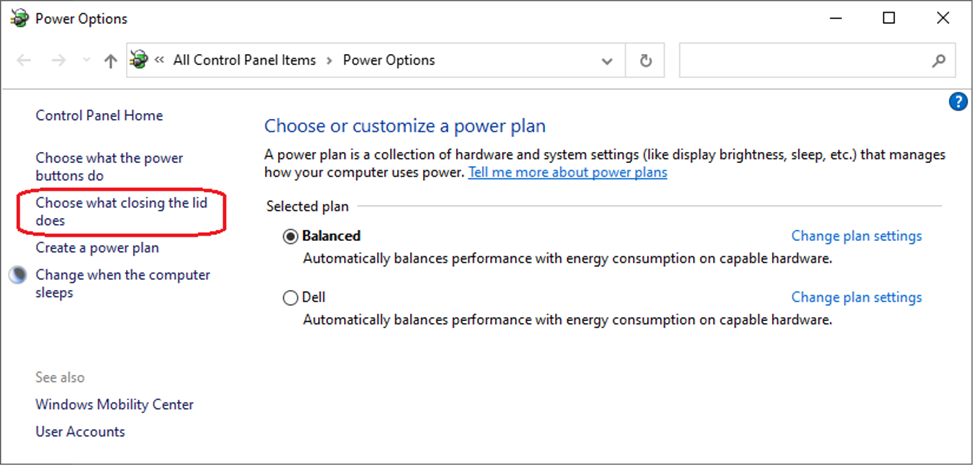
Click Choose what closing the lid does (on the left).
Under the section of When I close the lid: use the dropdown for Plugged In to Do Nothing.
Note: Do Nothing on Plugged-In mode will prevent your laptop from going to sleep as long as the power cord is plugged in. If you change the On Battery to Do Nothing, when you close your lid and put your laptop into a laptop bag, your computer will still be turned on and running. In a tight enclosure like your bag, it will not get the air it needs for the and can cause damage to your laptop.
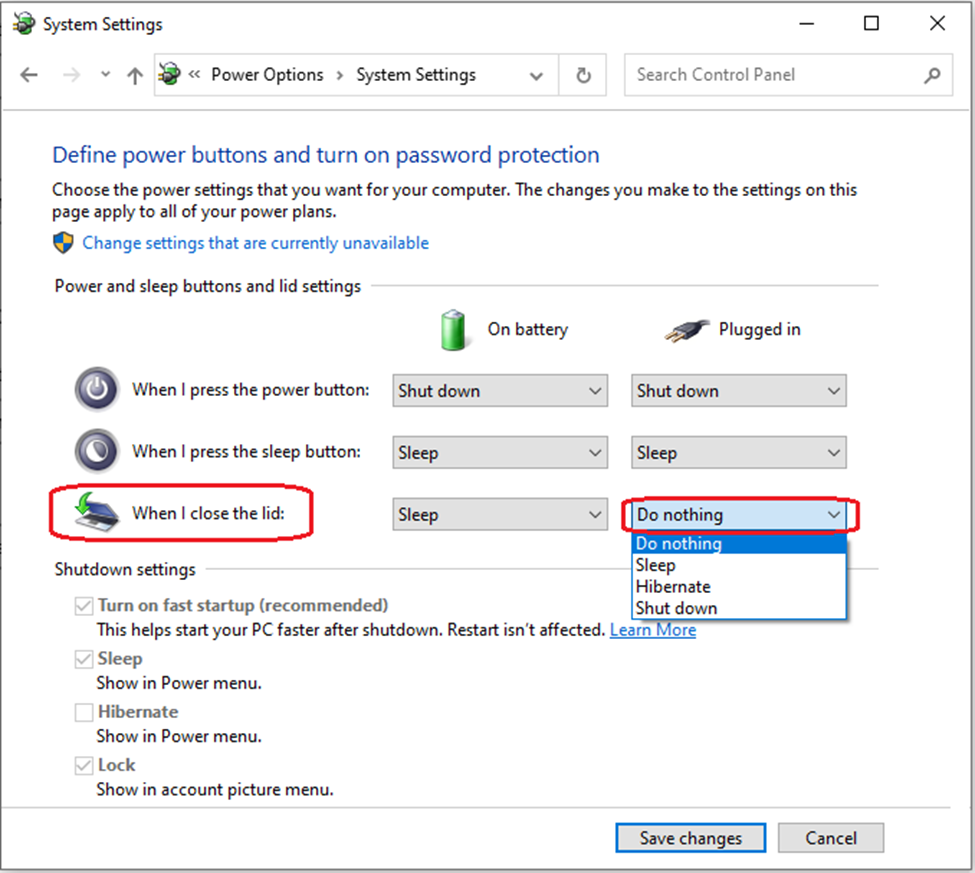
Click Save changes.
Your computer will no longer go to sleep and cause your monitors to go black when you close the laptop lid.
Docking Stations
Most Docking Stations (aka Port Replicators) connect by USB-A however, some newer ones connect by USB-C. Below are the list of different types of USB connections.
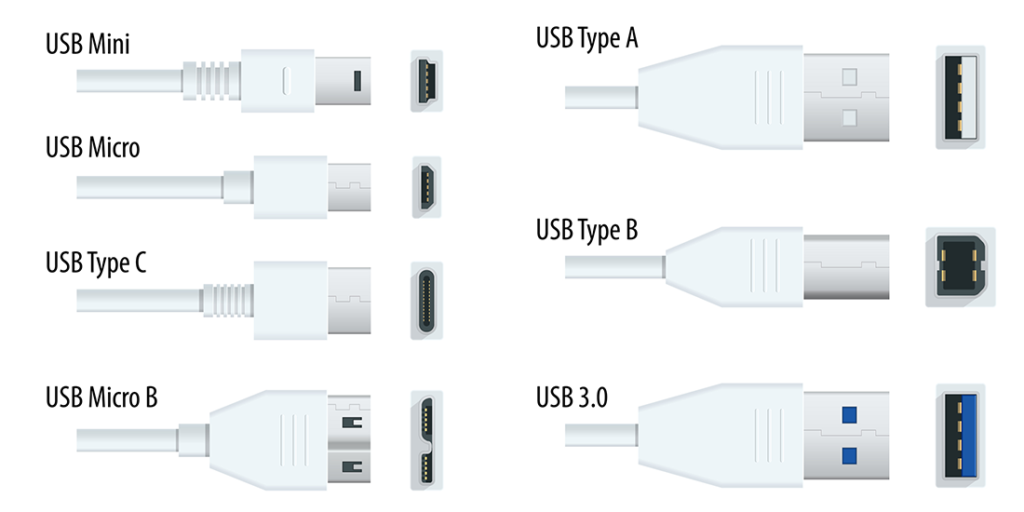
Docking Station Types
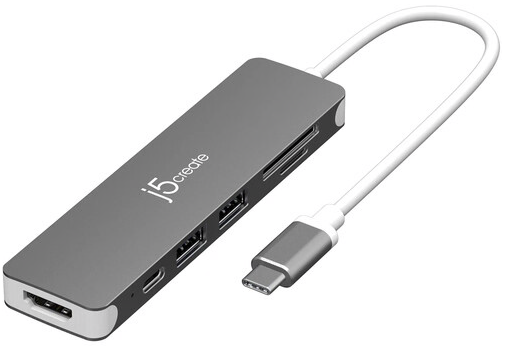
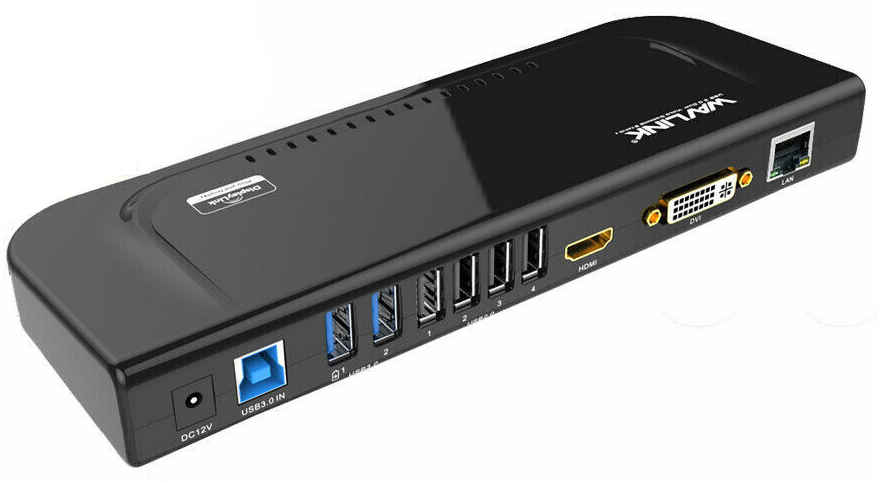
These are the commonly deployed docks used at Method:
j5create
Wavlink
Troubleshooting Monitor Connection Issues:
Unplug / Replug video connections at the monitor.
Unplug / Replug video connections at the computer or dock.
Try a different cable or adapter.
Unplug / Replug power cable plugging into the monitor.
Unplug / Replug power connection at the wall, surge protector, power strip, UPS, etc.
Reset the Surge Protector, Power Strip, or UPS’s power button.
Unplug / Replug power connection at the dock.
Unplug / Replug power connection for dock at the wall, surge protector, power strip, UPS, etc.
Try plugging the dock into a different USB port on the laptop.
Try resetting the video card by doing Ctrl+Shift+Windows+B
Restart Laptop.
Beyond this, there could be driver issues; please contact IT for assistance.