How to use Remote Desktop Connection or RDP (Remote Desktop Protocol) to connect to a computer in the office. Whether you are connecting from a remote machine, or laptop in the field, or from a conference room and connecting to a desktop, you will use Remote Desktop Connection.
Connecting to a computer via Remote Desktop Connection
Note: If you are remote (not in the office), you must first establish a VPN connection through Barracuda.
- Open Remote Desktop Protocol (click Start and type Remote and click on Remote Desktop Connection)

- Enter the computer name: Example MS137 or use the fully qualified domain name; MS137.method.local
- Click Connect, and you will be prompted for your computer credentials (first initial last name) and your computer password (not email)
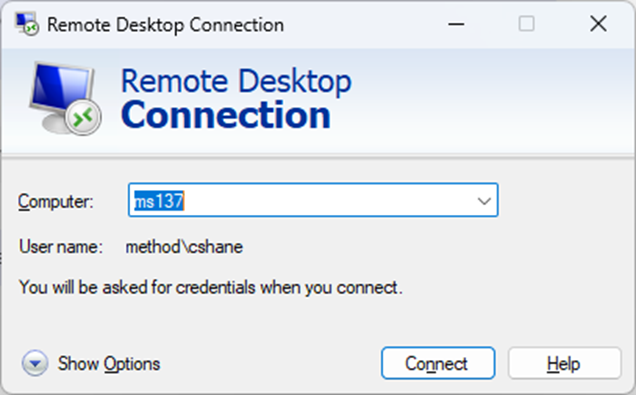
Remote Security Dialogue Box
If you are working remote and need to do a Ctrl+Alt+Del, but it only affects your local computer, you need to do the following to affect remote computer.
Ctrl+Alt+End – Keyboard shortcut used in a Remote Desktop Session to display the Windows Security Dialogue Box to enter credentials.
Customizing Remote Desktop Client
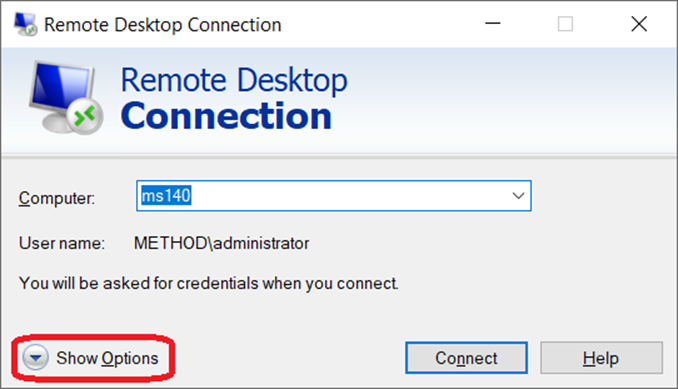
When connecting to a computer in the office via RDP, you have more options than just the sign-in. Click the Show Options button.
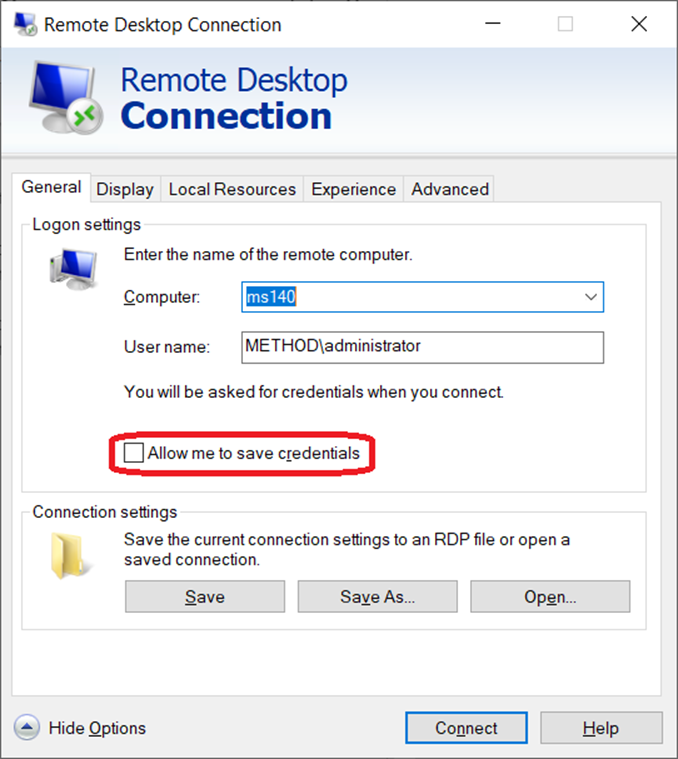
Save Credentials
On the General Tab, you can checkmark it to save your credentials. This will allow you to save this connection and its settings. You can save it to your desktop as a shortcut with your saved preferences.
Additional Monitors for Remote Sessions
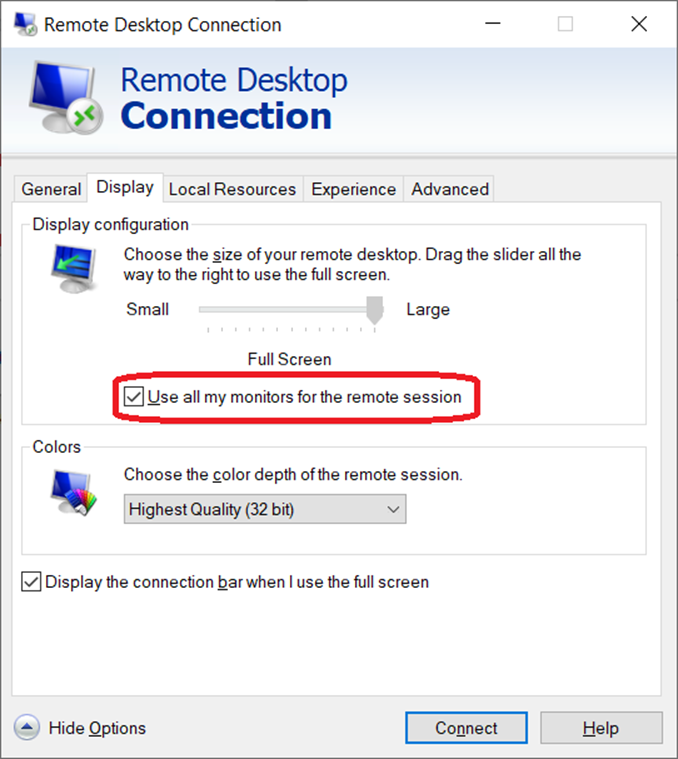
You can use more than one monitor on a remote session. If you are working from a station with two monitors and connecting to a computer with two monitors, you can have both stream across.
On the Display tab, checkmark Use all my monitors for the remote session. By default, RDP will use the Highest Quality for color depth remote sessions; leave this as default.
Local Resources vs. Remote Resources
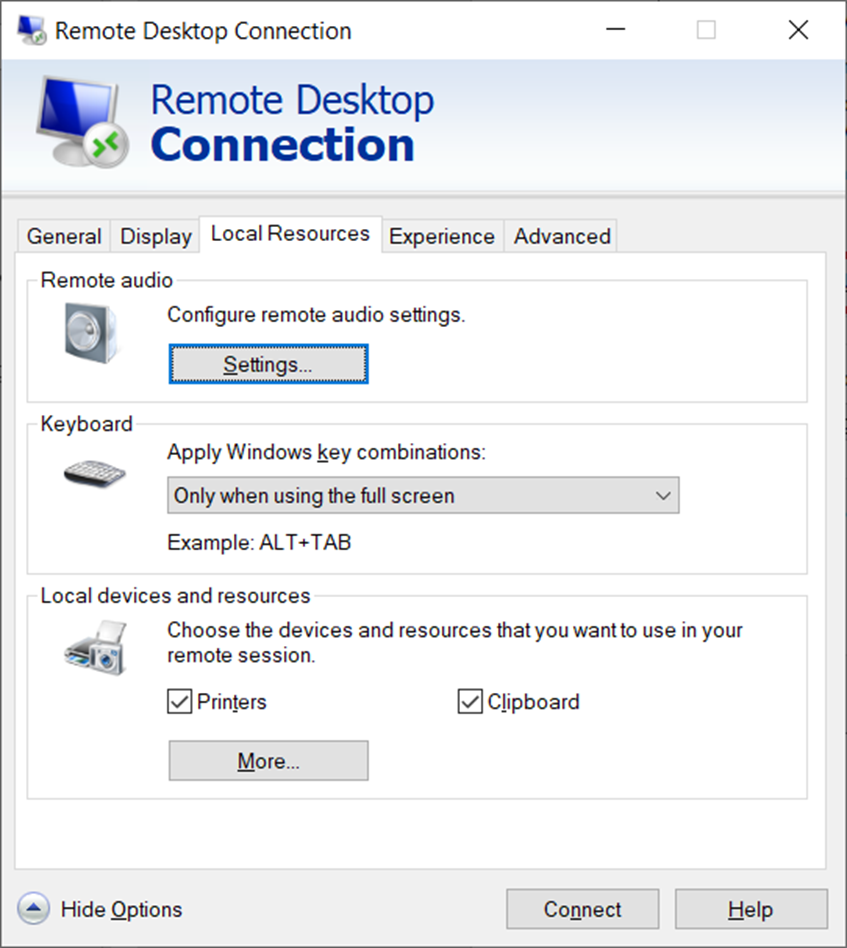
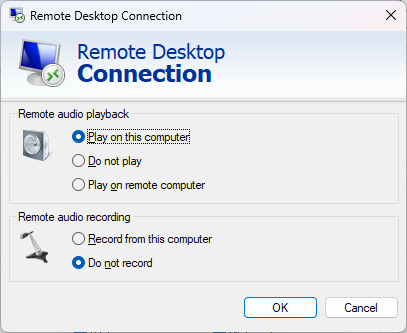
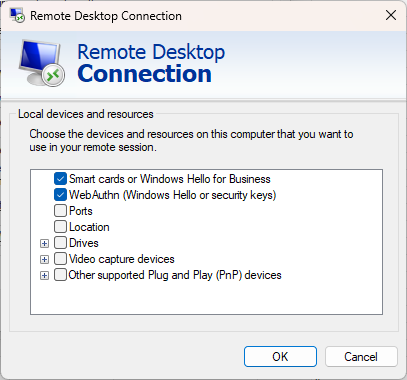
On the Local Resources tab, you can select your audio options, where to play audio on the local computer or remote. Windows Key combinations to pass through, or local resources.
If you are on a Teams call and the audio isn’t working, did you take the call on the remote or local machine you are using?
Use the Clipboard to copy and paste between local and remote.
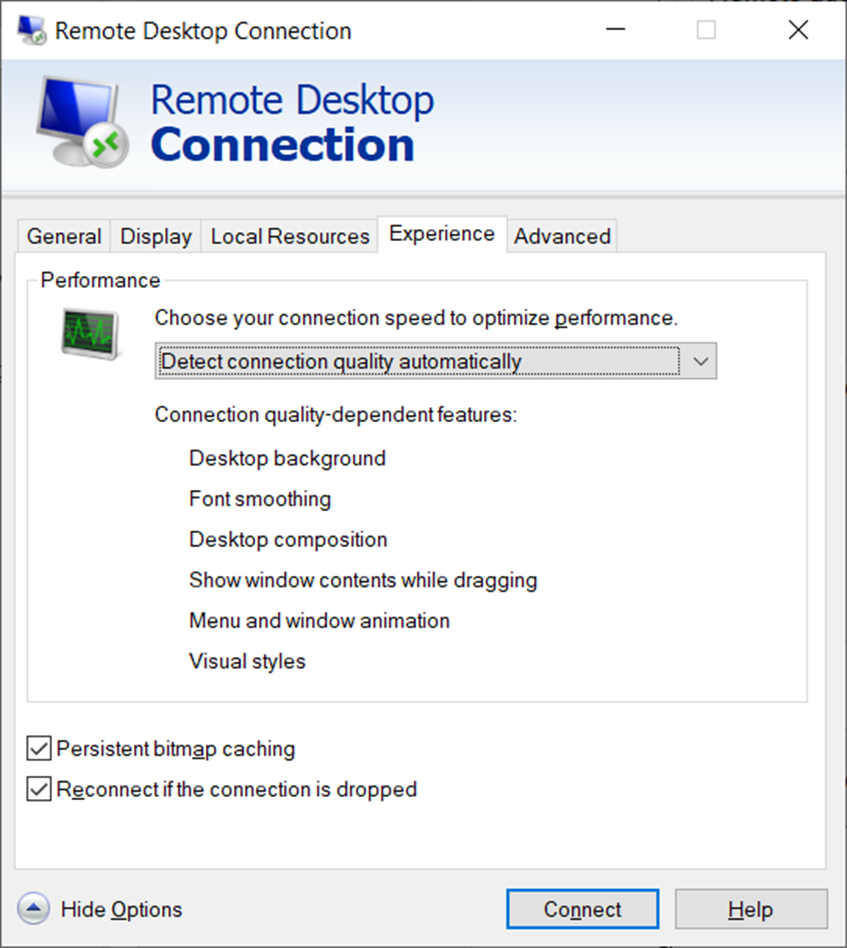
Experience
The Experience tab is used for quality-dependent features; use the default settings.
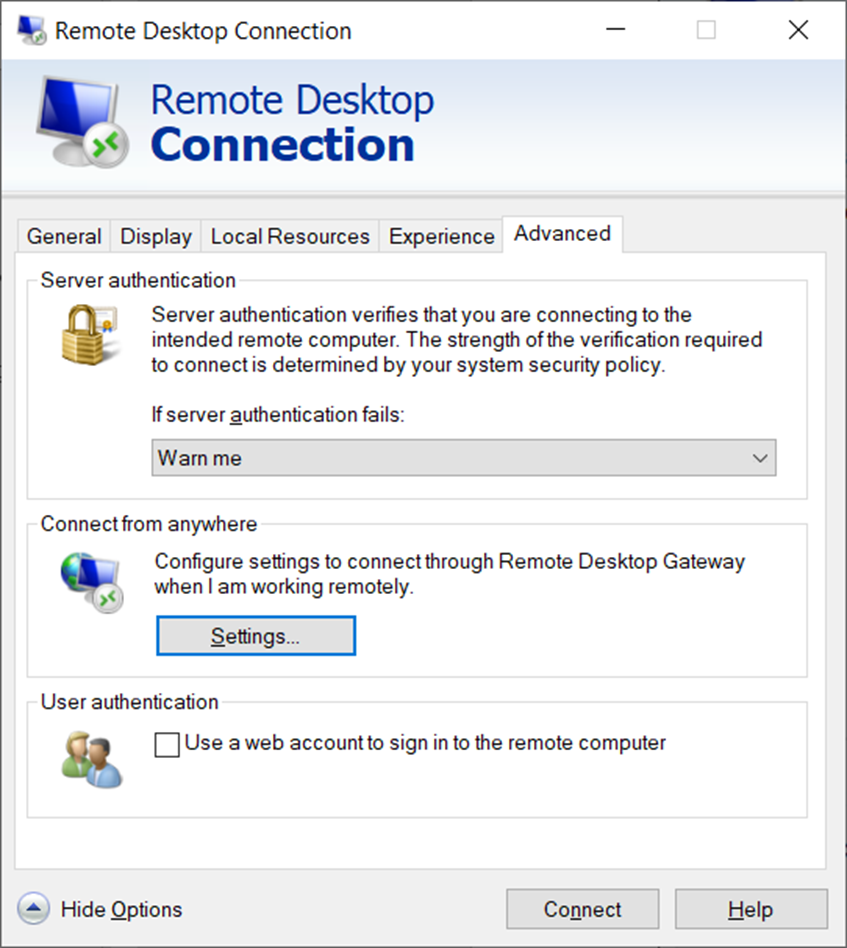
Advanced
The Advanced tab should use default settings. Do not change Server Authentication.