
• Home
  • IT Support
  • General Office
  • QX Support
Method Studio SupportMethod Studio Support
  • Home
  • IT Support
  • General Office
  • QX Support

MacOS: Control the pointer using Mouse Keys

December 5, 2023 IT, MacOS

With Mouse Keys on your Mac, you can move the mouse pointer and press the mouse button using the keyboard or a numeric keypad. To use Mouse Keys, choose Apple menu  > System Settings, click Accessibility  in the sidebar, click Pointer Control on the right, then turn on Mouse Keys. (You may need to scroll down.)

The following illustration shows the keys to use on a keyboard (the keys on the left) and on a numeric keypad (the keys on the right) when Mouse Keys is on.
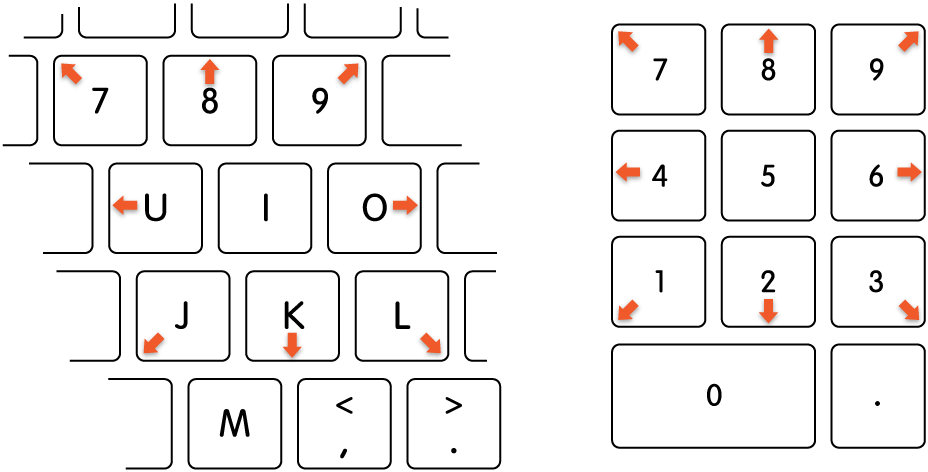
Keys that move the mouse pointer when Mouse Keys is on.

Note: When Mouse Keys is on, you can’t use the keyboard or a numeric keypad to enter text.

  • Move the mouse pointer:
    With a numeric keypad: Use the 7, 8, 9, 4, 6, 1, 2, 3 keys on the keypad.
    With the keyboard: Use the 7, 8, 9, U, O, J, K, L keys.
  • Click a mouse button:
    With a numeric keypad: Press 5 on the keypad.
    With the keyboard: Press I.
  • Press and hold the mouse button:
    With a numeric keypad: Press 0 (zero) on the keypad.
    With the keyboard: Press M.
  • Release the mouse button:
    With a numeric keypad: Press “.” (period) on the keypad.
    With the keyboard: Press “.” (period).

You also might be interested in

Copier/Scanner: Add an Account or Update a User Password

Jun 5, 2024

How to update passwords and add accounts to the scanner[...]

Revit: “The central model cannot be found, perhaps due to a lost network connection” when syncing

Apr 16, 2024

Issue: When synchronizing in Revit, the message “The Central model[...]

Bluebeam: Import/Export Different File Types

Mar 18, 2024

The Import/Export Preferences contain settings for importing content into a[...]

Contact Us

We're currently offline. Send us an email and we'll get back to you, asap.

Send Message

Pages

  • Admin Docs
  • General Office
  • Home
  • IT Support
  • QX Support

Categories

  • General Office
    • Food
    • Supplies
  • IT
    • Ajera
    • Barracuda Email Gateway
    • BIM Apps
      • Autocad
      • Bluebeam / Revu
      • Enscape
      • PyRevit
      • Revit
      • SketchUp
    • Computer Hardware
      • Monitors/Displays
      • Printing & Scanning
    • Cybersecurity
    • MacOS
    • Mobile Devices
    • Networking
    • Office 365
      • Excel
      • Microsoft Authenticator
      • OneDrive
      • Outlook
      • Teams
    • PDF
    • VPN & Remote Connection
    • Windows
      • Shortcuts

Recent Posts

  • Bluebeam: Missing Menu Bar or Toolbar
  • How to send Encrypted Email externally (outside the organization)
  • Enscape: already installed on this machine
  • PDF: How to open a PDF file
  • Enscape: How to activate Enscape using a license key

2025 Method Studio

Prev Next