
Revu checks for updates upon startup. Additionally, users can prompt Revu to check for updates manually. Users can review release notes concerning any updates and opt to skip them, at their discretion. An internet connection is required to check for and download updates.
Automatic Updates
Revu will automatically check for updates upon startup, provided an internet connection is available. When an update is found, the Update Revu dialog box will appear with release notes for the update.
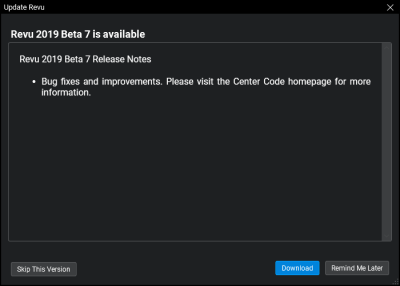
There are three actions available when an update is found:
- Download: Click to download the update.
- Remind Me Later: Click to skip downloading the update at the present time. Revu will remind you about the update at a later time.
- Skip This Version: Click to skip this update.
If you choose to skip the update, you can always run it manually later.
Checking for Updates Manually
Generally speaking, there is no need for a user to manually check for updates: Revu will automatically check for updates upon startup so long as there is an internet connection available at the time. However, the option is available.
- Go to Help > Check for Updates. Revu will communicate with a Bluebeam web service to determine if a new version is available. The Update Revu dialog box appears.
- If no new version is available, the Update Revu dialog box will indicate as much. Click OK to close the dialog box.
- If no new version is available, the Update Revu dialog box will indicate as much. Click OK to close the dialog box.
- When a new version is available, the Update Revu dialog box will show the version number and release notes outlining changes contained in the update. There are three options available:
- Download: Click to download the update.
- Remind Me Later: Click to skip downloading the update at the present time. Revu will remind you about the update at a later time.
- Skip This Version: Click to skip this update.