Typically, the size and position of a program window are saved when it is closed, and it should re-open to the same size and position. Of course, this only works for single instances of a program; for example, if you open a notepad window, it should open in the last size/position it was in. If, however, you then open a second notepad window and resize/reposition it, when you open notepad later, it will be in this new size and position.
Scenario:
In Windows with multiple monitors, when you have some applications open and you close or restart the computer, and you try to open it again, the location of the application on screen isn’t in the same place it was before.
Why does this happen?
If you have a program open on the left screen, and you undock your computer, the next time you launch the program, the application will want to appear in the same location, which is now off-screen because you don’t have the same 2 monitors connected. Or vice versa; you had it open on your laptop without monitors connected, you then connect to a dock or directly to monitors, and the application window doesn’t show up on your screen.
Troubleshooting (does not work with 100% of all programs):
- Move the window to the screen of your choosing, maximize it, then minimize it and maximize it again and then close the window. Next time launched, it should then launch in the same location and same size.
- Try pressing Shift when closing the program. That can make some software remember the spot where it had been closed, so when you open it again it appears in the same spot.
- Move the application window to where you want it and then press F11 TWICE.
Workaround (if the above options don’t work):
Take your mouse down to the Taskbar where you have the application running. If you right click on it, you will only get the option to close it, but you don’t want to close it. You don’t want to have to restart your computer either (which still may not resolve your issue).
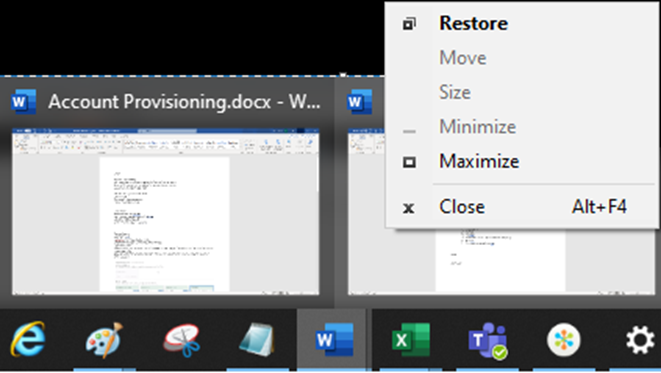
Move your mouse/cursor down to the open program, wait for the Peek Thumbnail Preview (mini window) to appear above your mouse/above the taskbar. Move your mouse/cursor up to the Thumbnail Preview and Right-Click. You will get options to Move or Maximize. Click Maximize which will expand the program on your screen to full size. However, if you then try to Restore and make it smaller, it will disappear off of the screen again. You can Right-Click the Thumbnail Preview and choose Move and use your Arrow keys to move the application window to right or left and reposition it onto your screen. You can only move when the screen is partially sized/restored, not maximized.
This will allow you to see a mini window of the icon your are looking at.
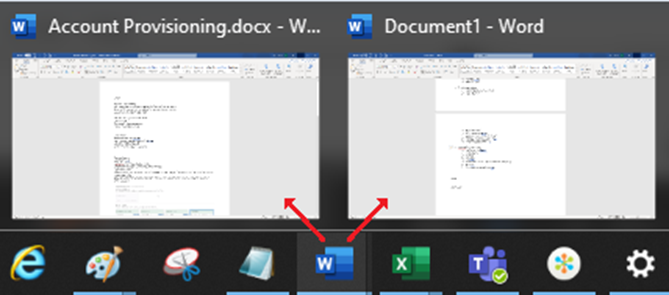
Move your mouse down to the program in the taskbar, hover over the program, wait for the Peek window to appear, move your mouse up to the Peek window, right-click, and select Maximize. This will maximize it on your screen. You can also select Move and use your arrow keys to try and bring it into view. If Move is grayed out, click Restore. Then try Move.