• Home
  • IT Support
  • General Office
  • QX Support
Method Studio SupportMethod Studio Support
  • Home
  • IT Support
  • General Office
  • QX Support

Networking: Map Network Drives

March 22, 2023 IT, Networking, VPN & Remote Connection, Windows

If you have issues adding the P: drive or any drive to your computer, follow this guide.

Drives are mapped automatically by Group Policy; when you log into your computer, the drives should automatically map.

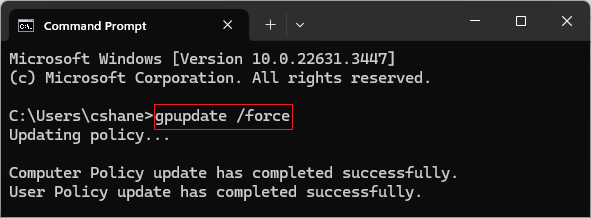
How to refresh group policy to map drives:

  • Click Start (Windows icon)
  • Type CMD and press enter
  • In the black dos window, type:
    • gpupdate /force

This will update both computer and user policies which should map your drives


Manually Mapping Network Drives

Open Windows File Explorer

  • Right-click the Start button and select File Explorer or press Windows+E
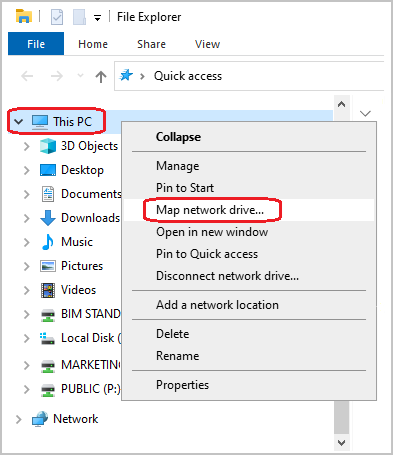
  • In File Explorer, right-click This PC and select “Map network drive“
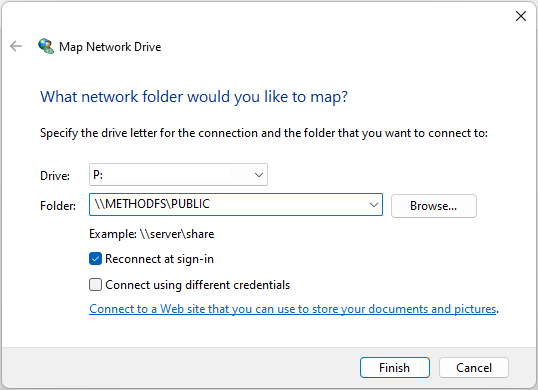
  • A dialogue box will appear for you to enter the network drive letter.
    Example: P:

  • In the folder section, you will enter two forward slashes “\\”, the server name, another forward slash “\” and the folder name.
    Example:
    • For the B: use \\METHODFS\BIM STANDARDS
    • For the M: use \\METHODFS\MARKETING
    • For the P: use: \\METHODFS\PUBLIC
    • For the R: use \\METHODFS\TEMPLES
    • For the Z: use \\METHODFS\TEMPLATES

  • By default, the “reconnect at sign-in” button is set to on. If for any reason it’s not, please be sure to check the box.
NOTE: This does not guarantee permission to all folders; some folders are restricted by security groups. If you need assistance with access, please submit a ticket to IT.


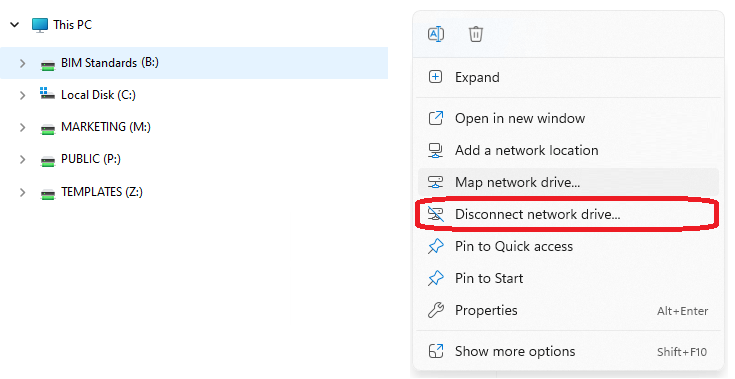
Disconnecting Mapped Drives

Sometimes there might be an error that states that the device name is already in use. However, you cannot access it.
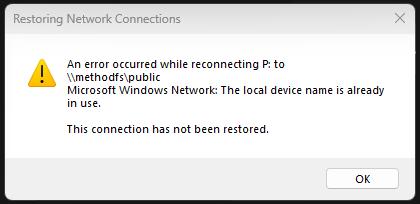
In this instance, you must Disconnect the drive.

  • Open File Explorer
  • Right-click the specified drive
  • Click Disconnect network drive…

This will remove the drive, and then you try and map by group policy or manually mapping the network drive.


If you have any issues connecting to drives, please contact IT.

You also might be interested in

MacOS: Sleep, Log Out, and Shut Down Shortcuts

Dec 5, 2023

Using Keyboard Shortcuts To use a keyboard shortcut, press and hold[...]

Cyber Security: Vishing – Are You Getting Too Many Scam Calls?

Apr 19, 2024

Are You Getting Too Many Scam Calls? 1 in 3[...]

Cyber Security: The Six Spooky Threats to Your Privacy and Identity

Apr 19, 2024

Summary: This Halloween season and beyond, watch out for data[...]

Contact Us

We're currently offline. Send us an email and we'll get back to you, asap.

Send Message

Pages

  • Admin Docs
  • General Office
  • Home
  • IT Support
  • QX Support

Categories

  • General Office
    • Food
    • Supplies
  • IT
    • Ajera
    • Barracuda Email Gateway
    • BIM Apps
      • Autocad
      • Bluebeam / Revu
      • Enscape
      • PyRevit
      • Revit
      • SketchUp
    • Computer Hardware
      • Monitors/Displays
      • Printing & Scanning
    • Cybersecurity
    • MacOS
    • Mobile Devices
    • Networking
    • Office 365
      • Excel
      • Microsoft Authenticator
      • OneDrive
      • Outlook
      • Teams
    • PDF
    • VPN & Remote Connection
    • Windows
      • Shortcuts

Recent Posts

  • Bluebeam: Missing Menu Bar or Toolbar
  • How to send Encrypted Email externally (outside the organization)
  • Enscape: already installed on this machine
  • PDF: How to open a PDF file
  • Enscape: How to activate Enscape using a license key

2025 Method Studio

Prev Next