
How to update passwords and add accounts to the scanner
When employees start, they have a folder created in P:\04 Scans. This folder is the recipient of items scanned from the copier. Below are instructions for updating passwords and adding new accounts on both the Cannon MFP devices (East and West). For the plotter – contact IT.
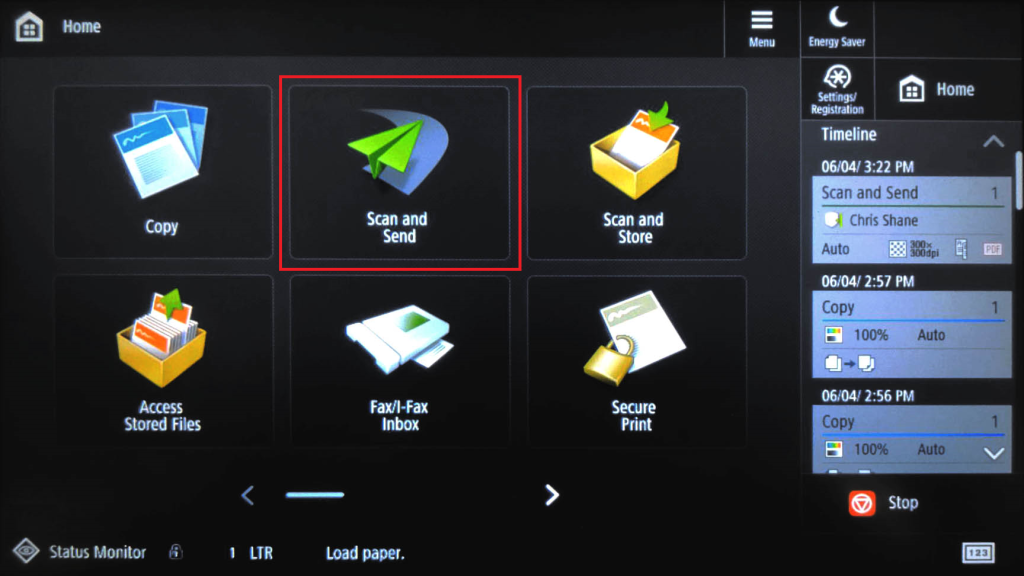
1. Tap the Scan and Send button.
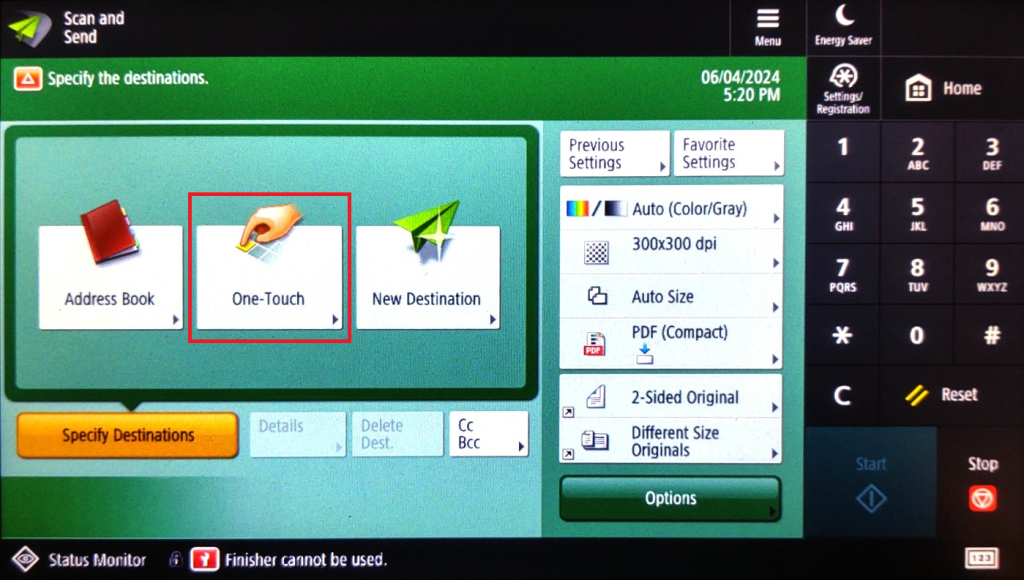
2. Tap the One-Touch button.
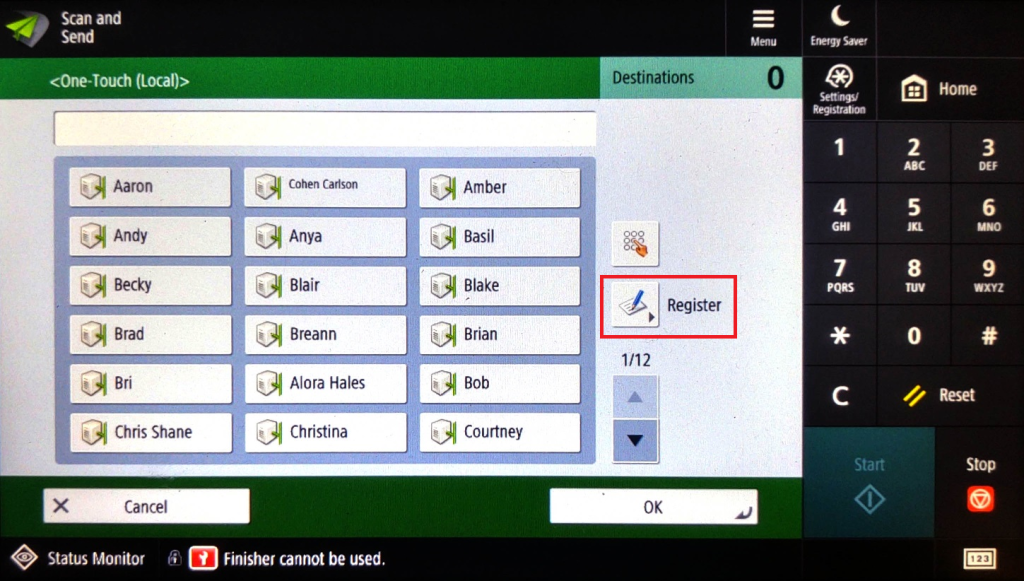
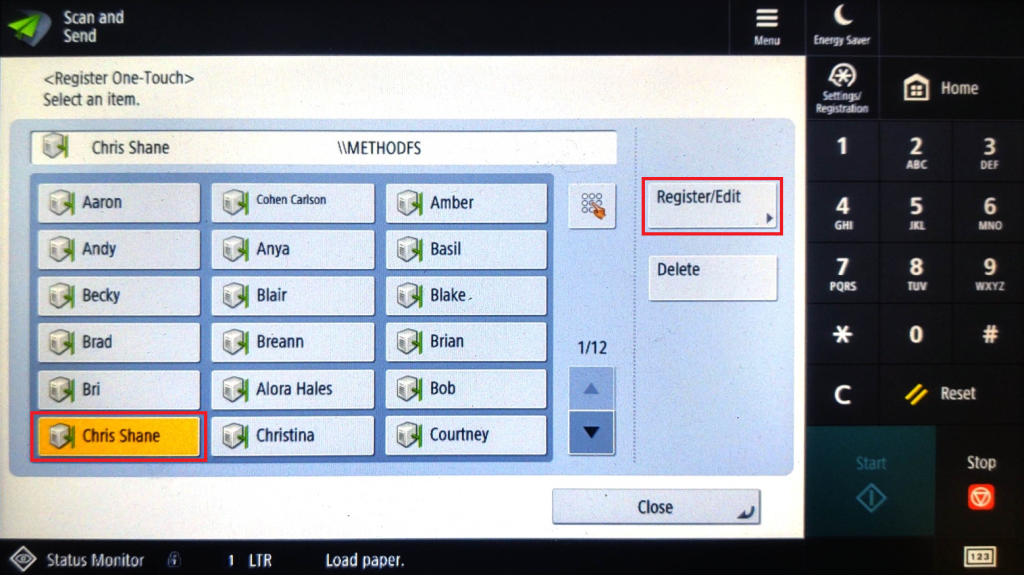
3. Tap the Register button, this gets you into the Register One-Touch Menu.
4. New Accounts: For new accounts; find an available number and tap Register/Edit. (If you don’t select a number, the Register/Edit button is grayed out.)
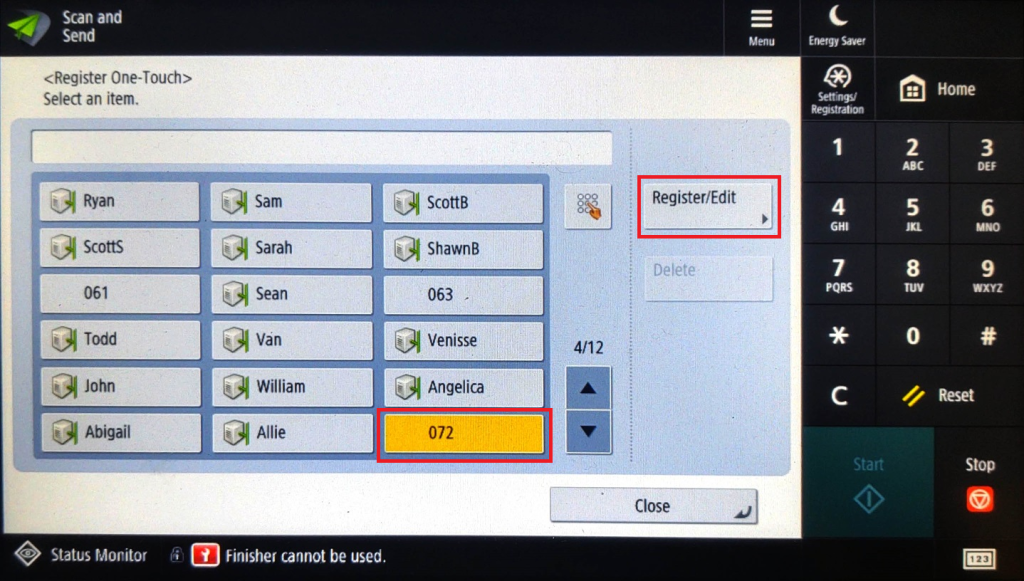
5. Existing Accounts: For existing accounts, tap your name to select, then tap the Register/Edit button.
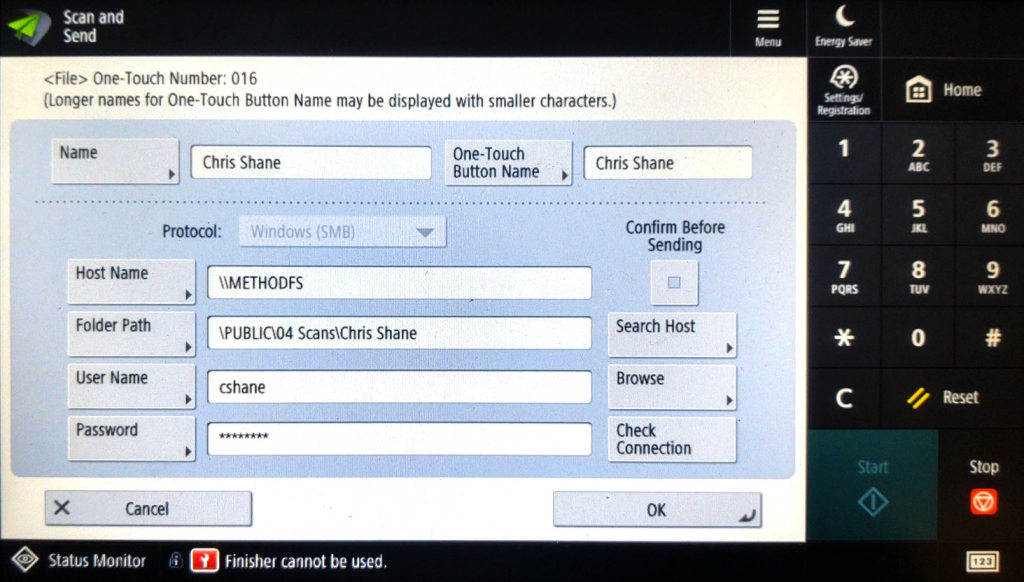
6. New Accounts: For new accounts, enter the information seen below:
- Name: your name
- One-touch Button Name: your name
- Host Name: \\METHODFS
- Folder Path: \PUBLIC\04 Scans\your folder name (typically username but verify)
- User Name: Computer login name (typically first initial last name)
- Password: Computer Password (not your email password)
*Note: When your computer password changes, you must update the password on the scanner or the scans will not go through and the copier will print out an error message.
*Tip: Do not tap the Confirm Before Sending button or you will have to enter your password every time you wish to scan.
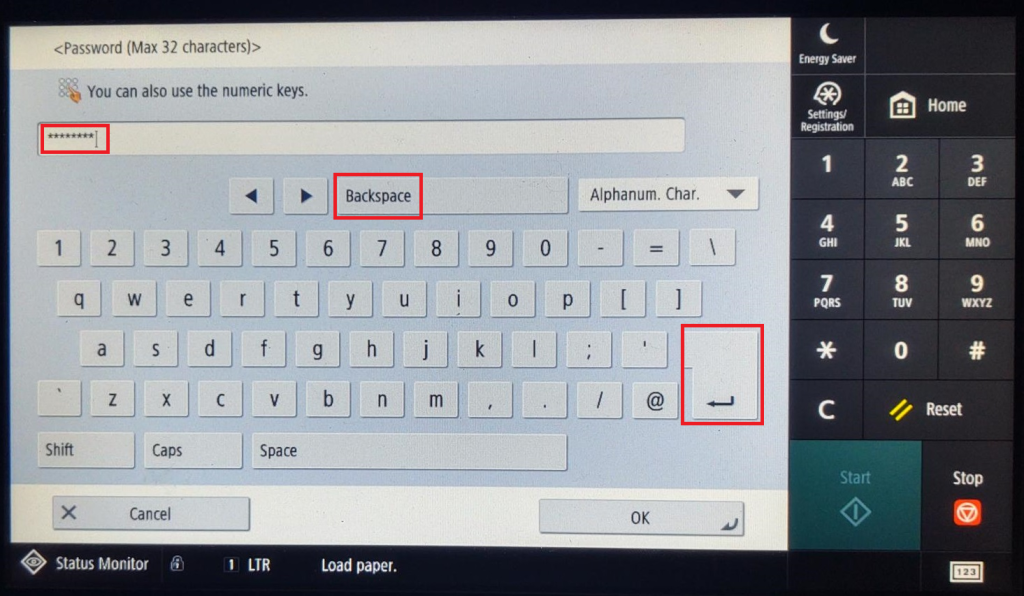
7. Password: When you tap the Password button, you will be prompted to enter your computer password. You must use the Backspace button to remove the asterisks from the top field. After you have entered your password, press the Enter button. The screen will show the Password field as empty, you will have to submit your password a second time. Then press Enter.
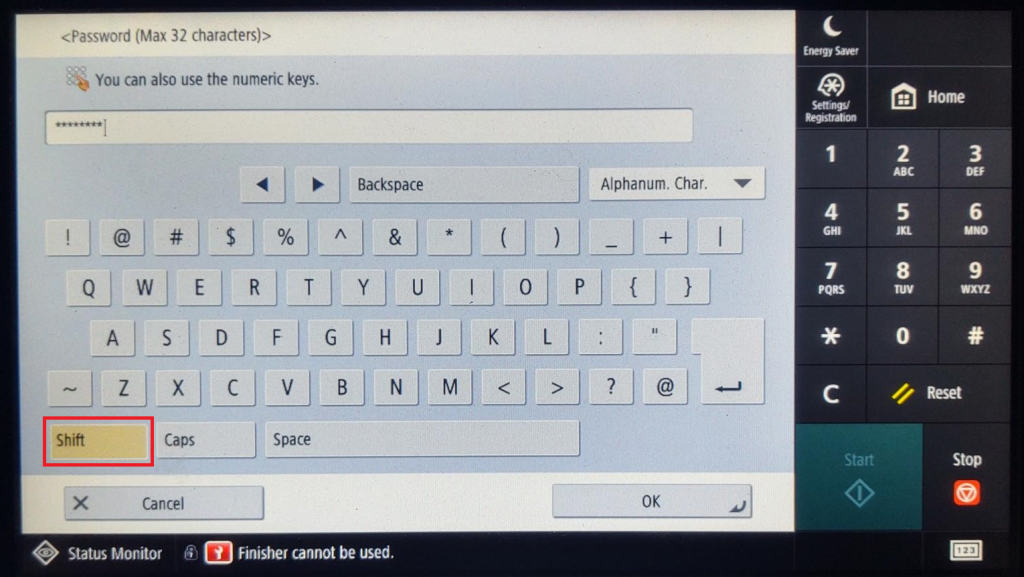
For special characters, press the Shift button.
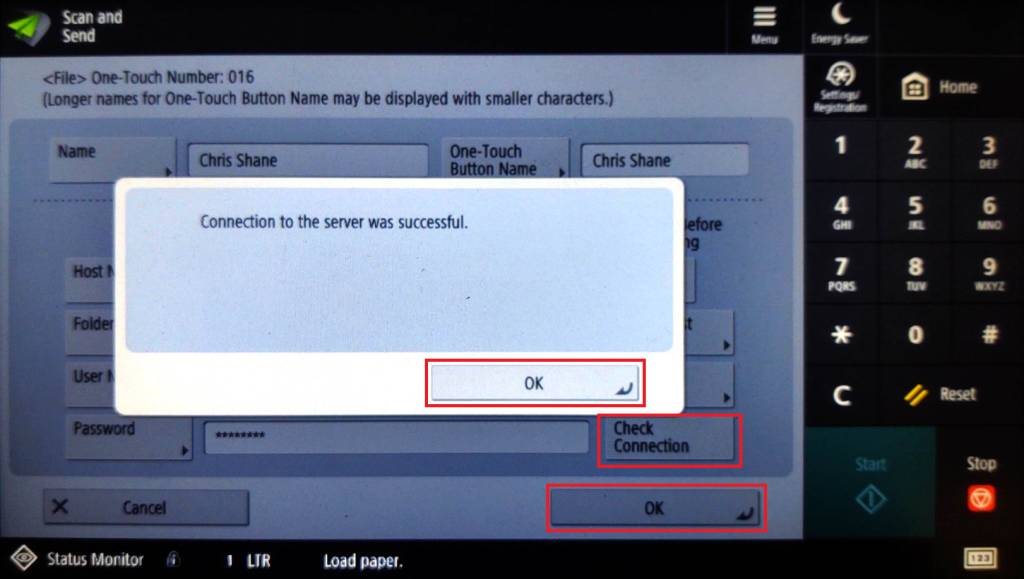
8. When done, tap the Check Connection button to verify the connection to the server.
Press OK and OK.
9. Once done, you should be able to find your name in the One-Touch keys and scan to your folder.
Plotter HP DesignJet 3600 XL
The passwords do need to be updated for the plotter but only IT can do it for you. Please submit a ticket.